
Campaign
Adhese makes it easy to target, monitor and optimise the delivery of online campaigns. Campaigns are a grouping of booking conditions and creatives.
Add a campaign
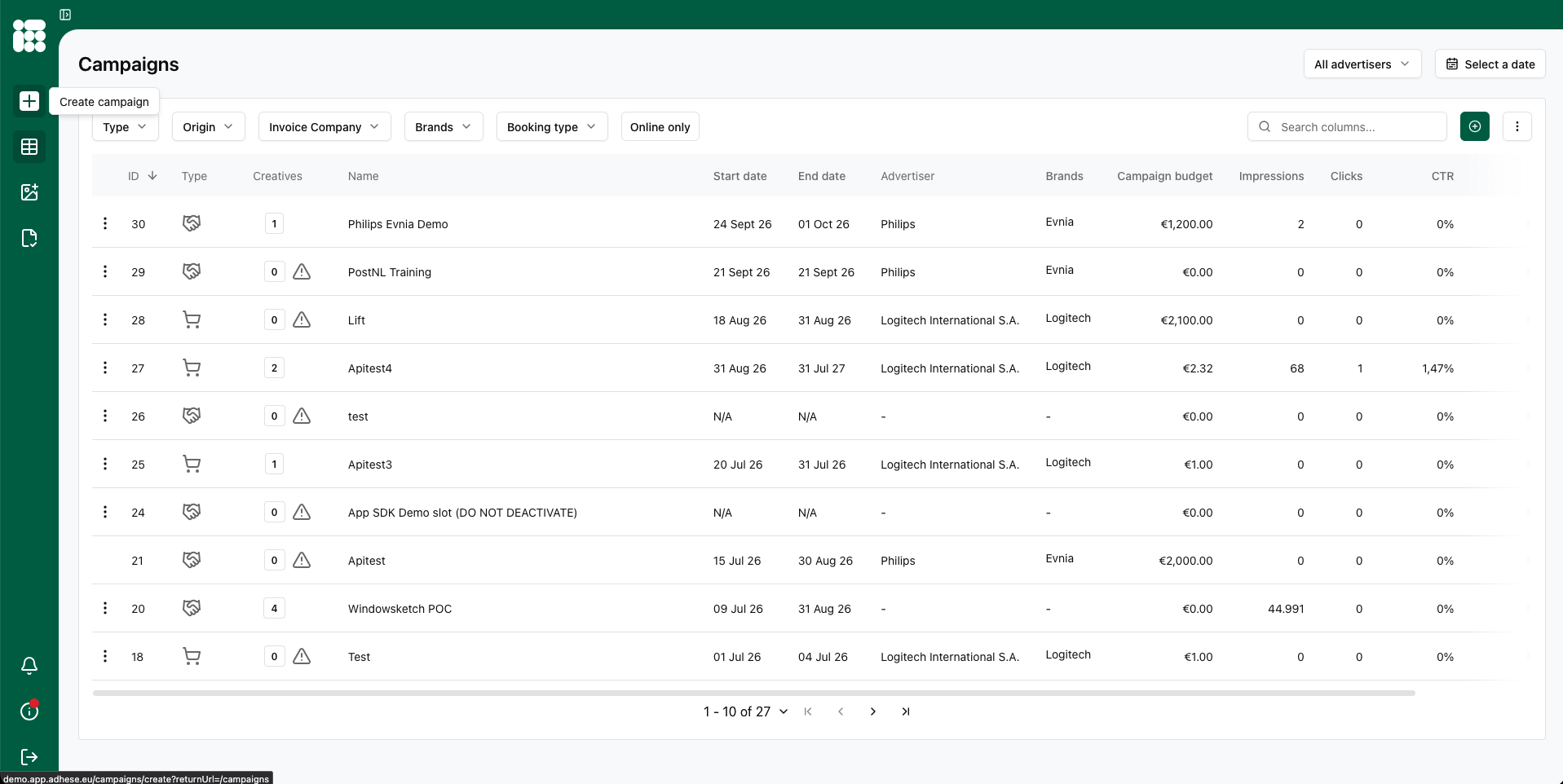
To add a new campaign, click the Create campaign button in the top left (+).
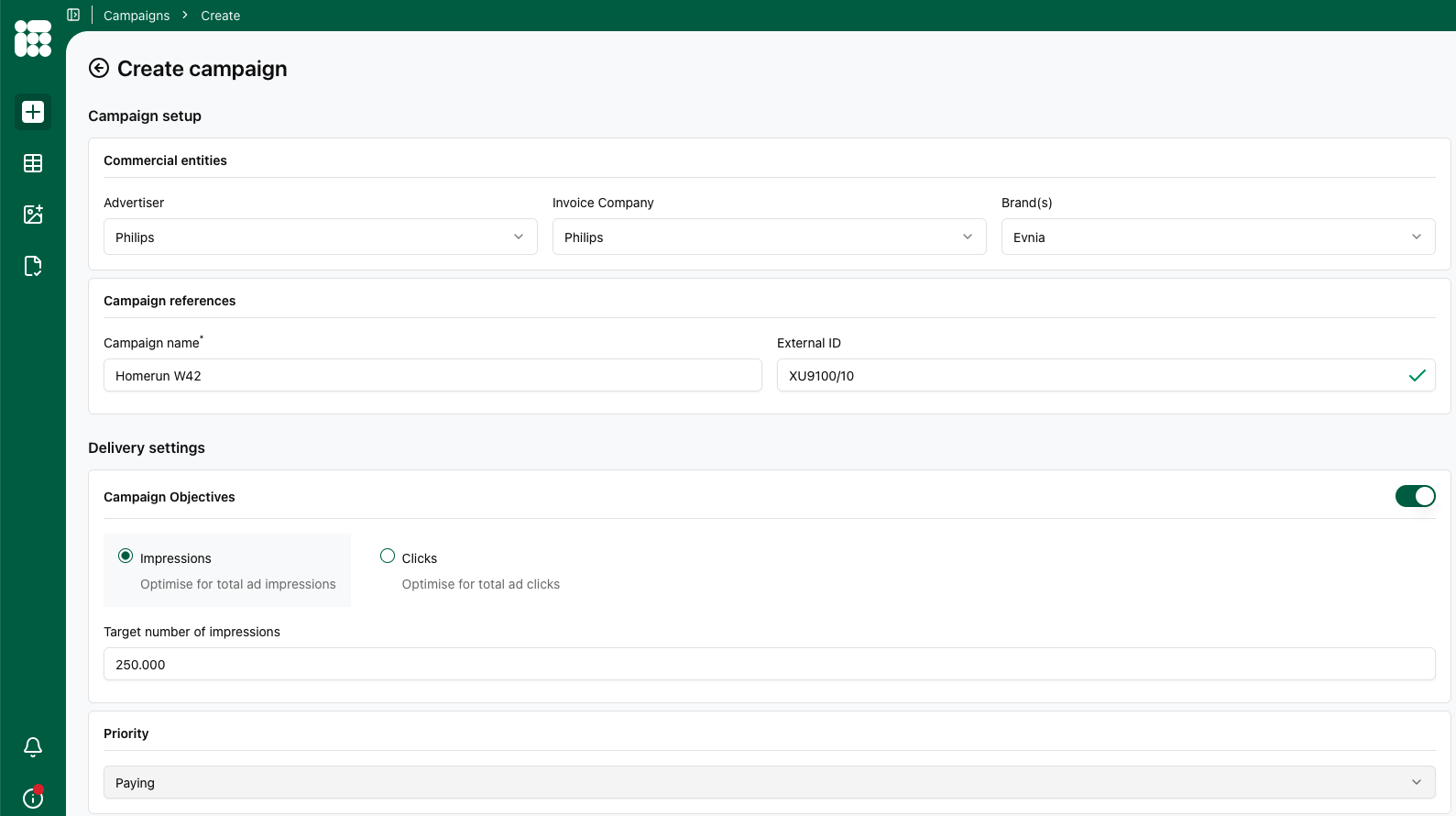
You will go to the Create campaign screen. Here fill in the information and rules of the campaign. From top to bottom:
- Advertiser - Invoice Company - Brand(s) linked to the campaign
- Campaign name is required to be filled in
- External ID: Extra IDs that can be filled in, allowing for easy matching with external systems, not required
- Campaign Objectives: togglable setting that sets a campaign objective. When set, the campaign and all underlying bookings will end when the chosen and entered objective is reached. This is optional.
- Can be either in Impressions or Clicks
- Priority: Here you have a dropdown where you can select the campaign priority. The lower on the list, the lower the campaign priority. The campaign priority will be the default booking priority.
- Delivery limit: a togglable limit based on Impressions or Clicks, either Daily or Hourly expressed in the chosen amount. For the chosen time period, when the target is reached, the campaign and all of its underlying bookings will stop delivery for the duration.
- Budget: Here you can enter the total campaign budget. When working with CPM or CPC, once the budget is reached, the campaign and all of its underlying bookings will stop. Filling in a campaign budget is optional.
- Internal note: Here you can leave a note or instructions for other adops or campaign managers, this is optional.
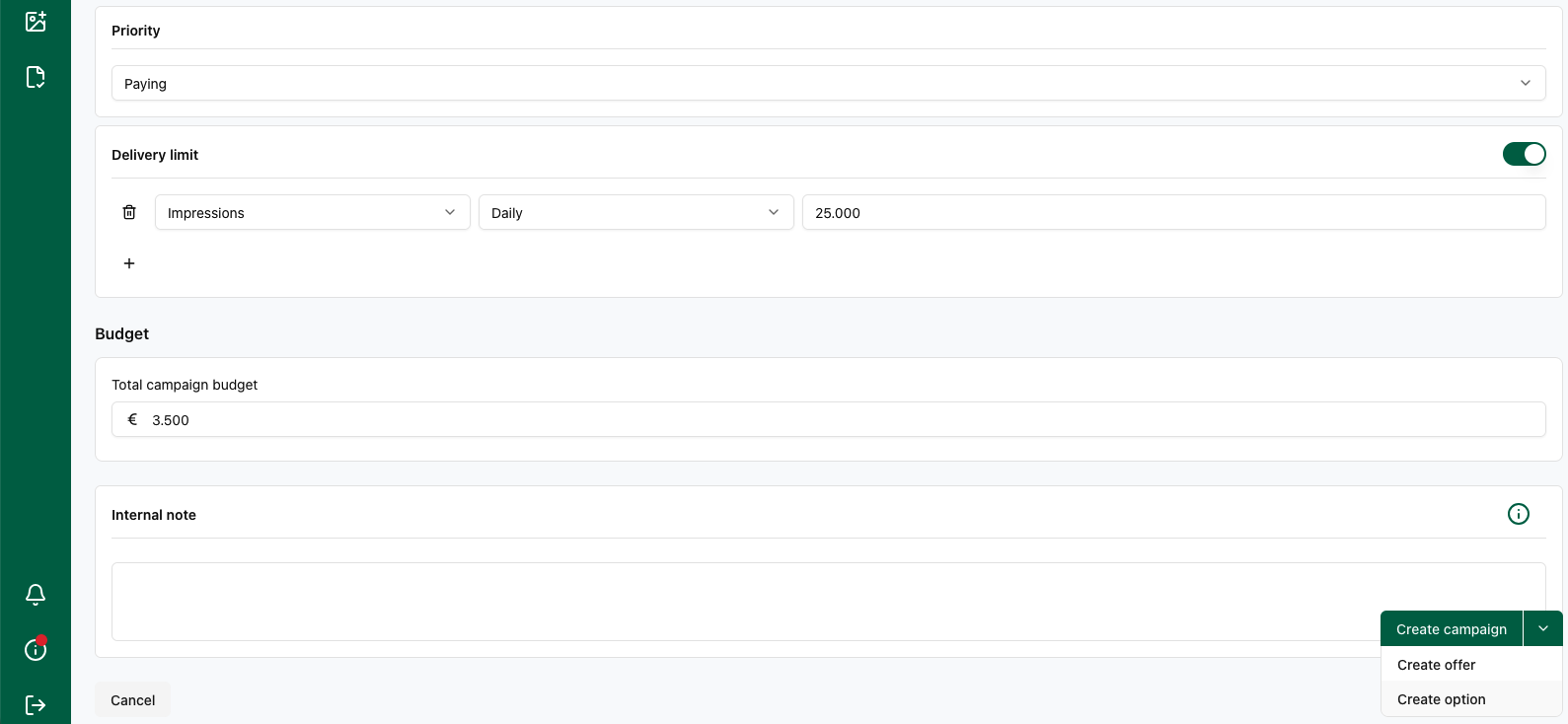
Once you're done, you can decide to save the campaign as a campaign, offer or as an option.
No comments to display
No comments to display