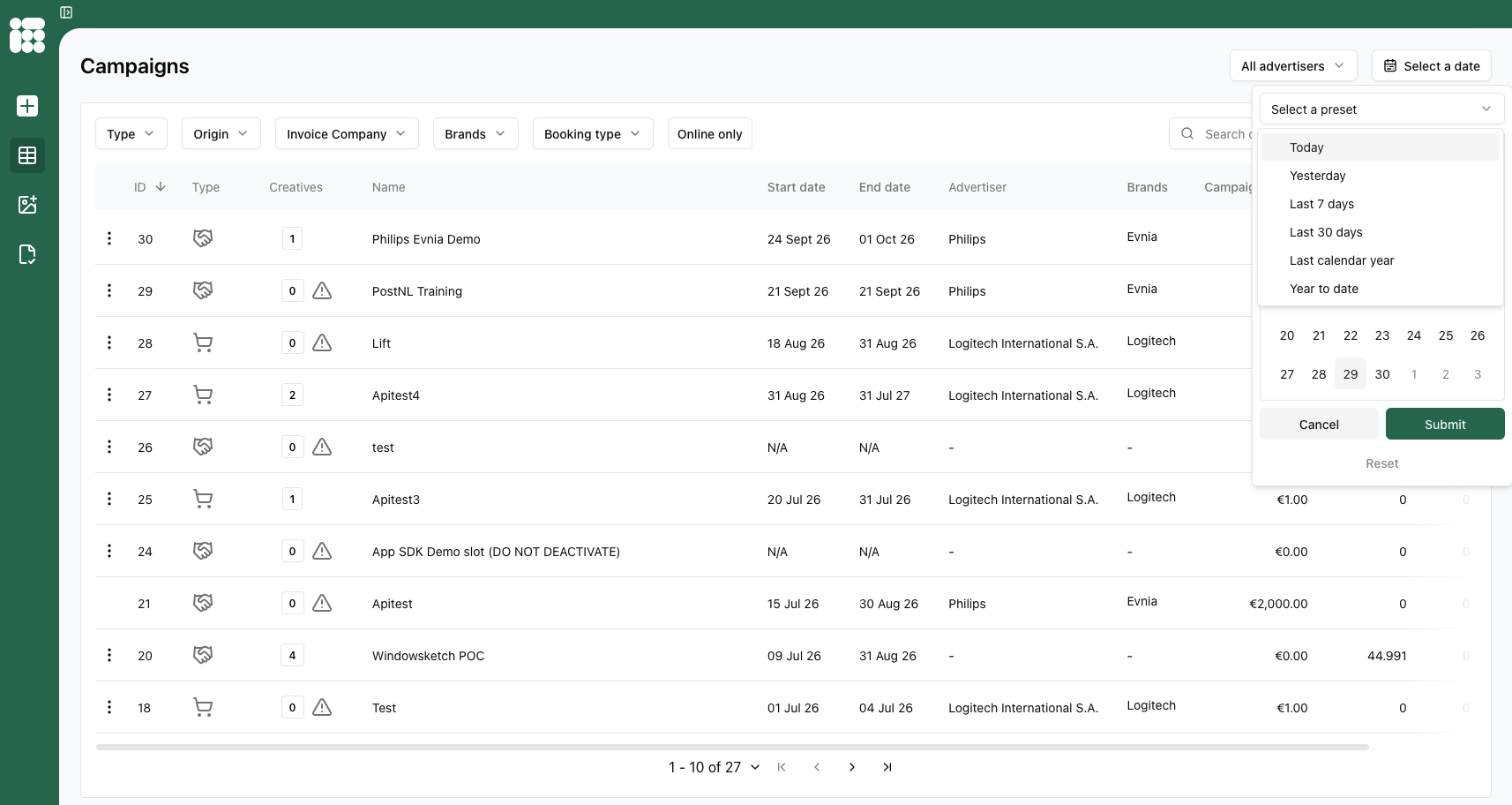
Campaign screen
When you log into Adhese using the Campaign Manager interface, the first thing you will see is the Campaigns screen:
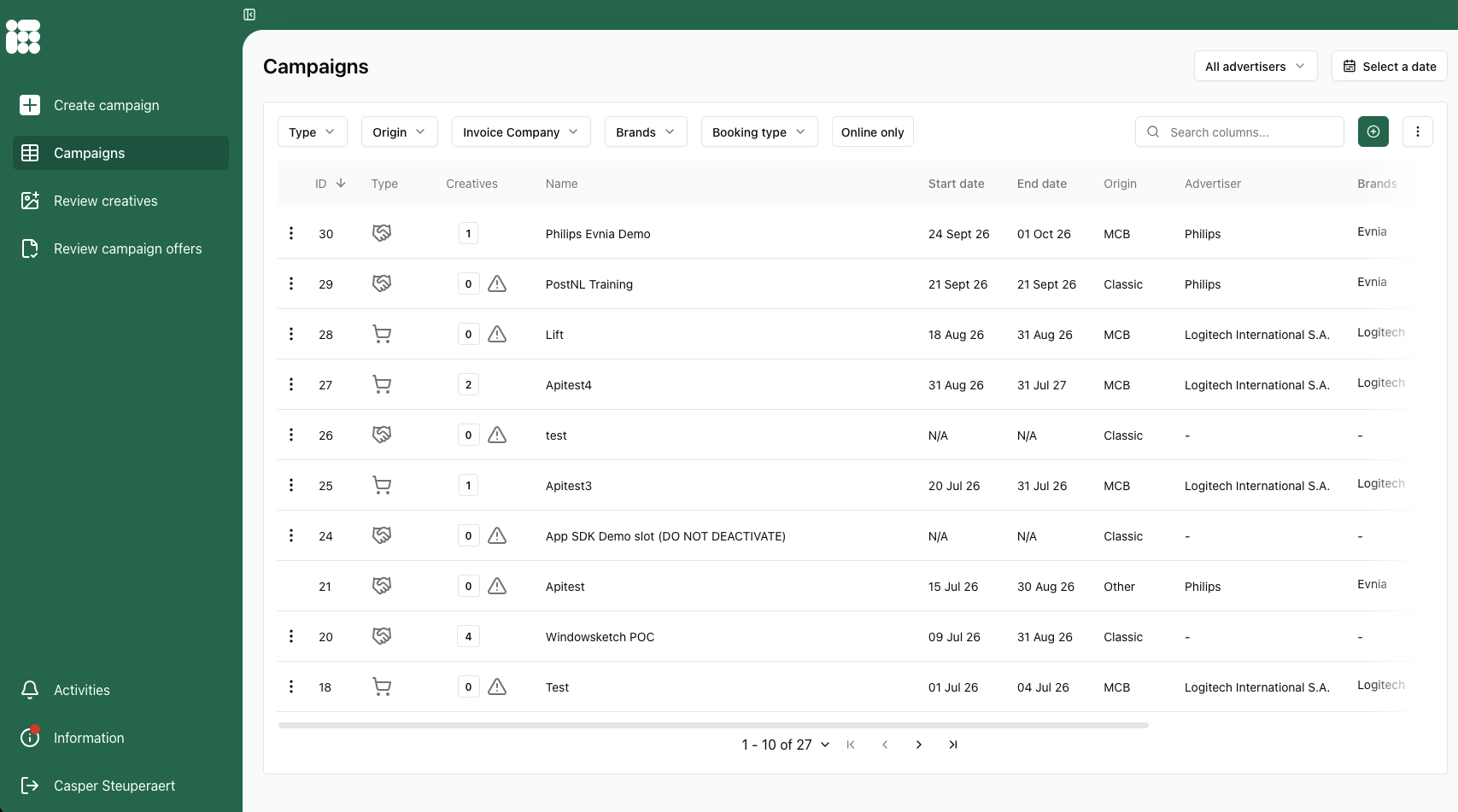
Use the open/collapse selector  at the top of the screen to open the sidebar with text next to the icons.
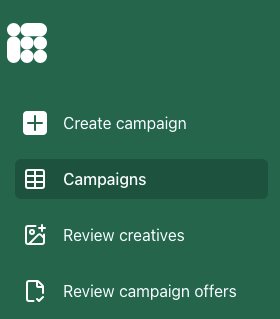
 The sidebar menu contains the following links:
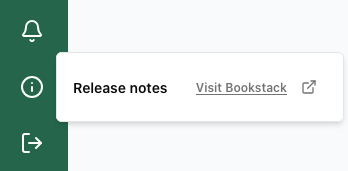
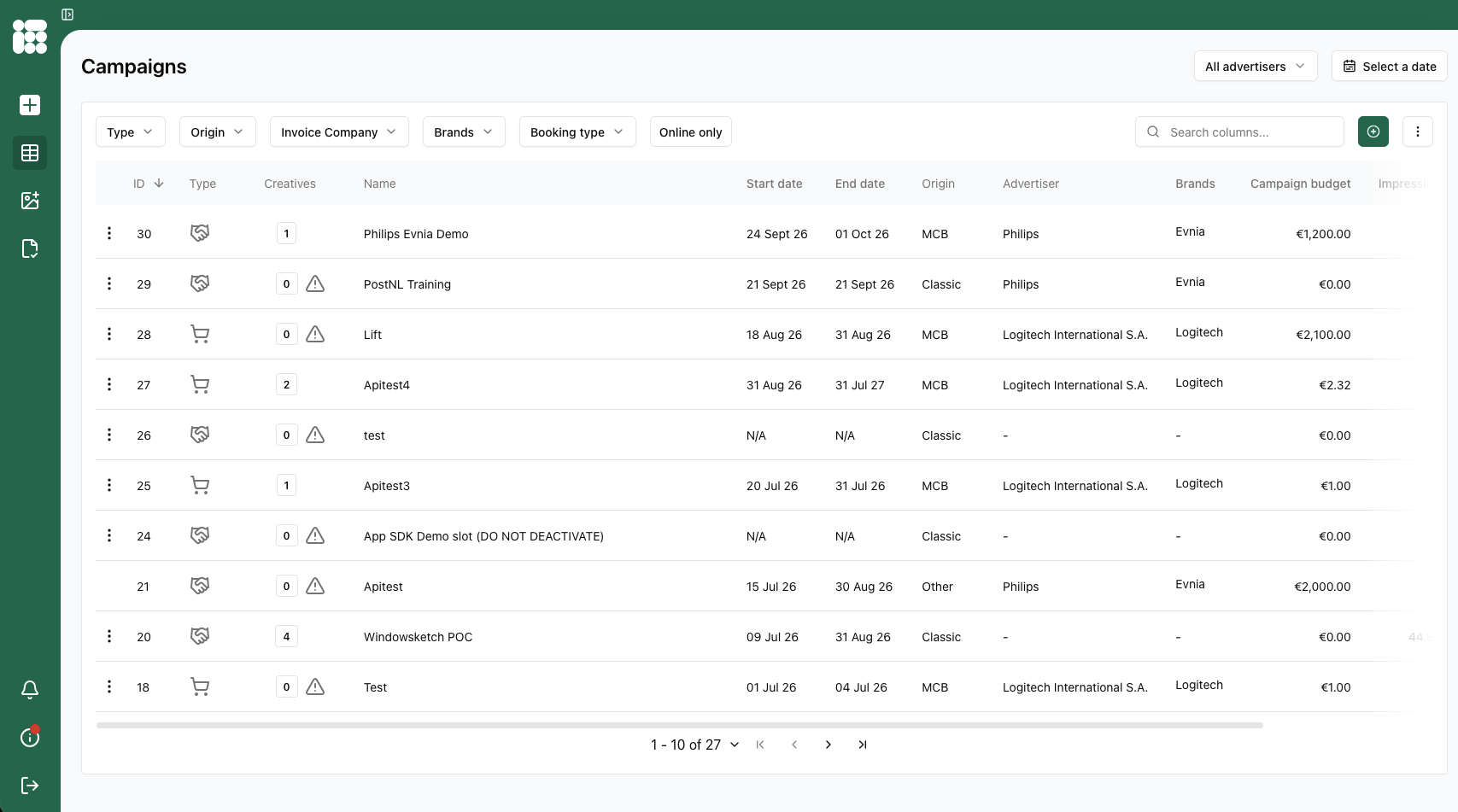
Columns that can be highlighted can be sorted. Columns with numbers can be sorted from smallest to largest or vice versa:
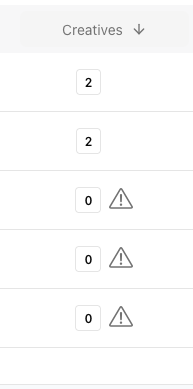
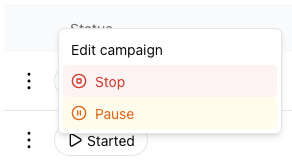
To the left of the campaign status, there are three dots. Here you can click through to edit existing campaigns:
The icons to the right of the campaign status indicate the type of campaign: either managed (the first icon) or self service (the second icon).
The Campaigns screen lists campaigns and several columns of information about those campaigns. The columns can be customised, and columns can be selected and deselected:
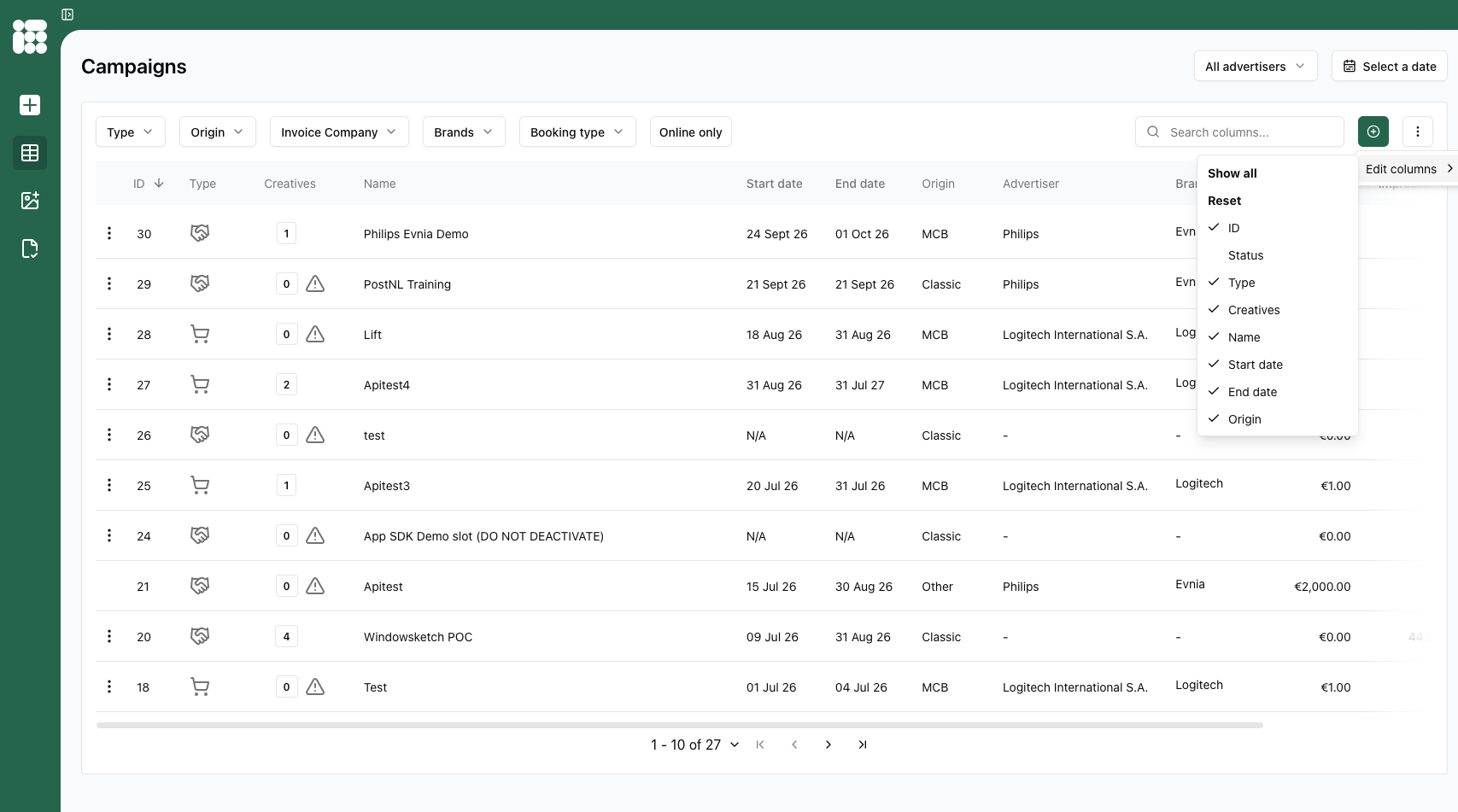

On the bottom of the page you can go to the next page of the campaign screen, go to the last page or change the amount of campaigns displayed on one page.
Filters in the campaign screen
There are the following campaign filters:filters available above the campaigns:
- Campaign type (managed or self service)
- Campaign Origin (e.g. Classic UI, Campaign Manager, Advendio)
- Invoice Company
- Brand
- Booking type (display, In-store, sponsored products)
- Online only (currently active)
On the top right you can filter campaigns based on the advertiser:
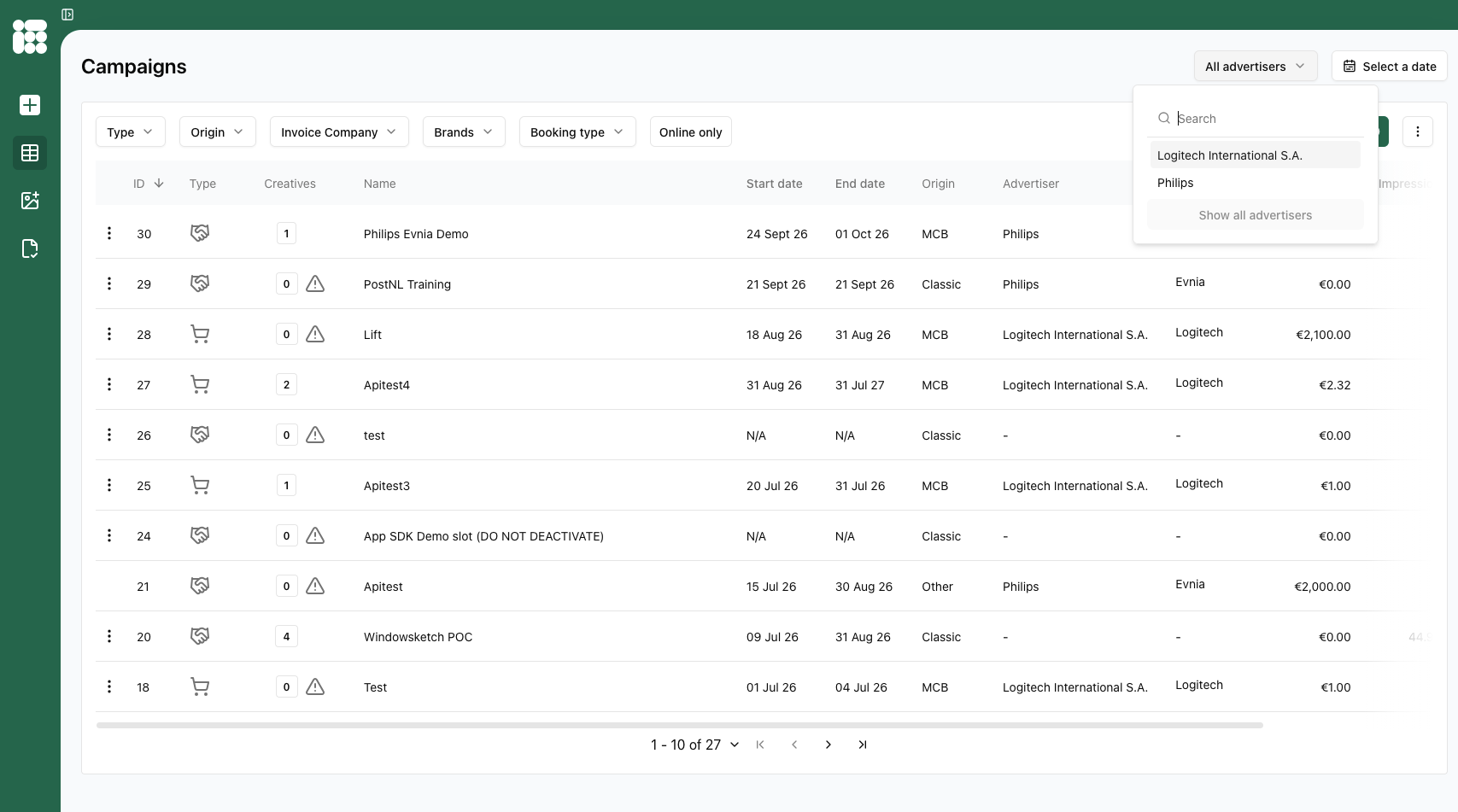
Next to the filter on advertiser you can filter campaigns based on date, with some quick filters available as well: