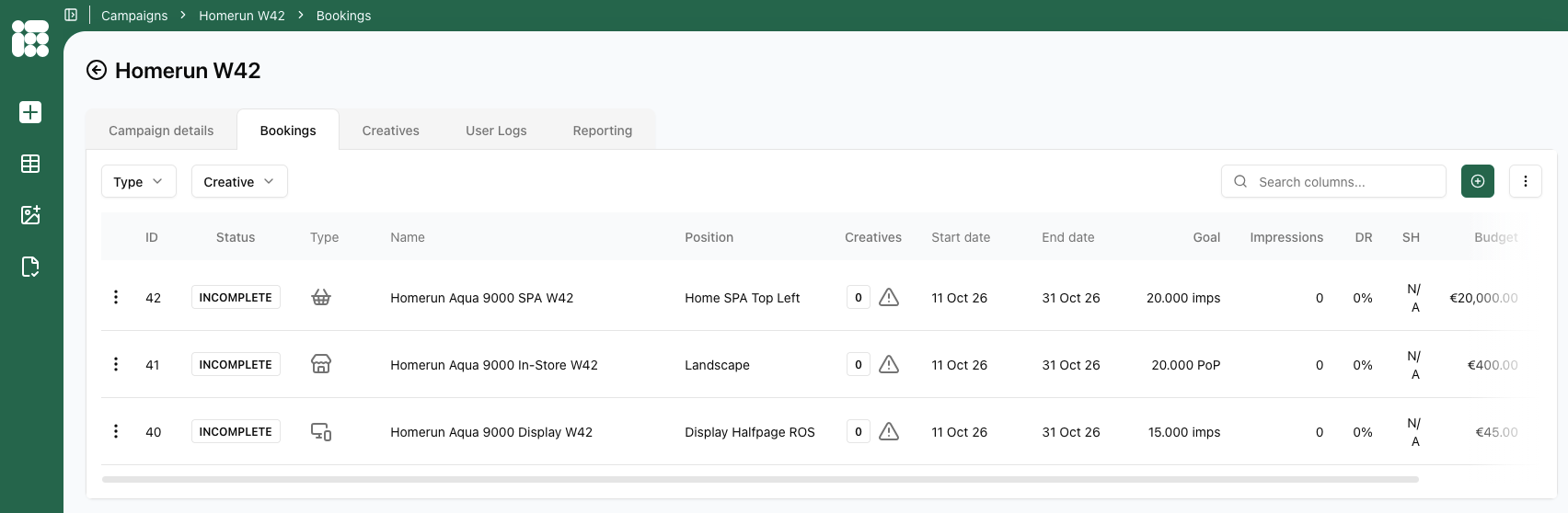
Bookings
Booking
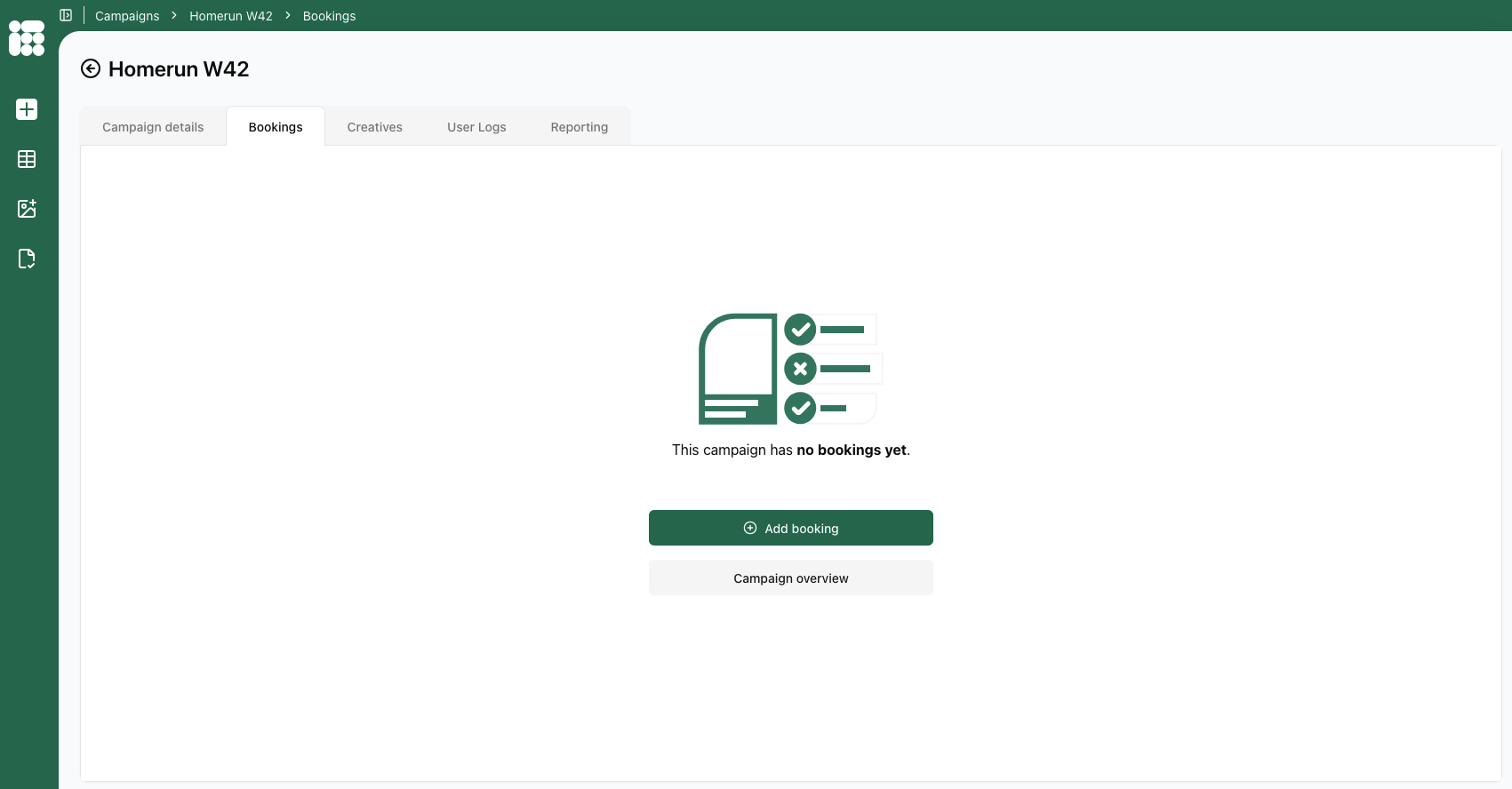
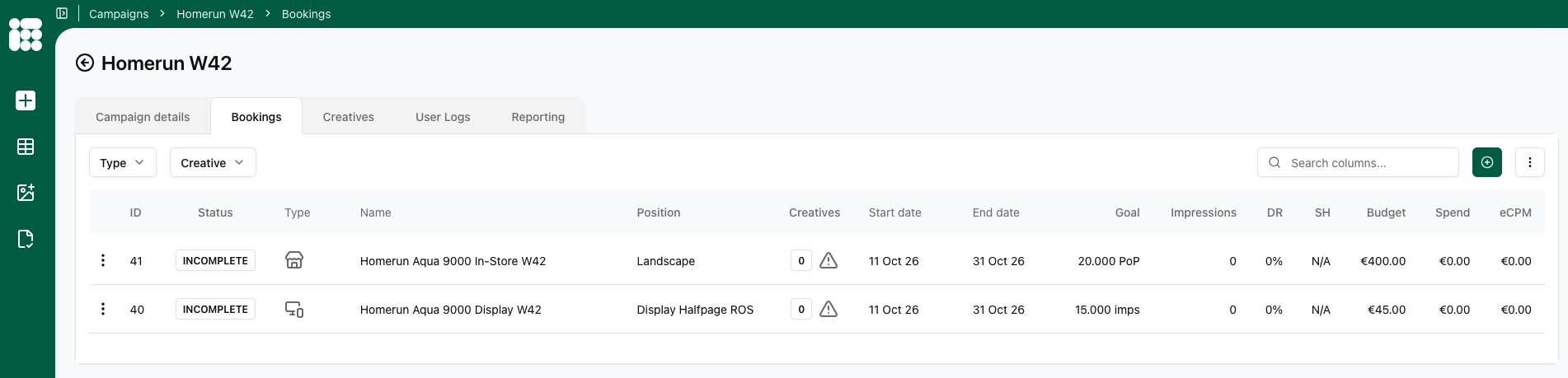
After creating a campaign, you will arrive at the Bookings tab. To create a new booking, click Add booking.
You can also open an existing campaign and click on the booking tab to create new bookings in existing campaigns.
From the empty booking tab, you can also return to the campaign overview by clicking on the option under Add booking.
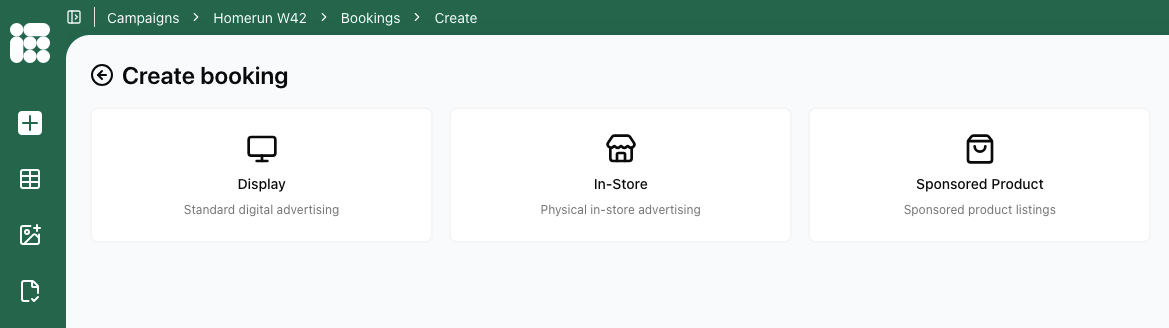
Once you clicked Add booking you will come to the following screen to select a booking type. What booking types are available depends on the configuration of your account.
If you need a change in what booking types are available to your account, please contact Support.
All possible booking types available are:
- Display: classic web and app advertisements
- In-Store: DOOH ads delivered to mapped digital screens
- Sponsored Product: product list ads based on a retailers stock
Display Booking
Please consult the following page for more information to create a new booking.
Booking setup
Once you clicked on the Display booking type, a series of forms to enter the booking details will be presented. The first form is the Booking setup:
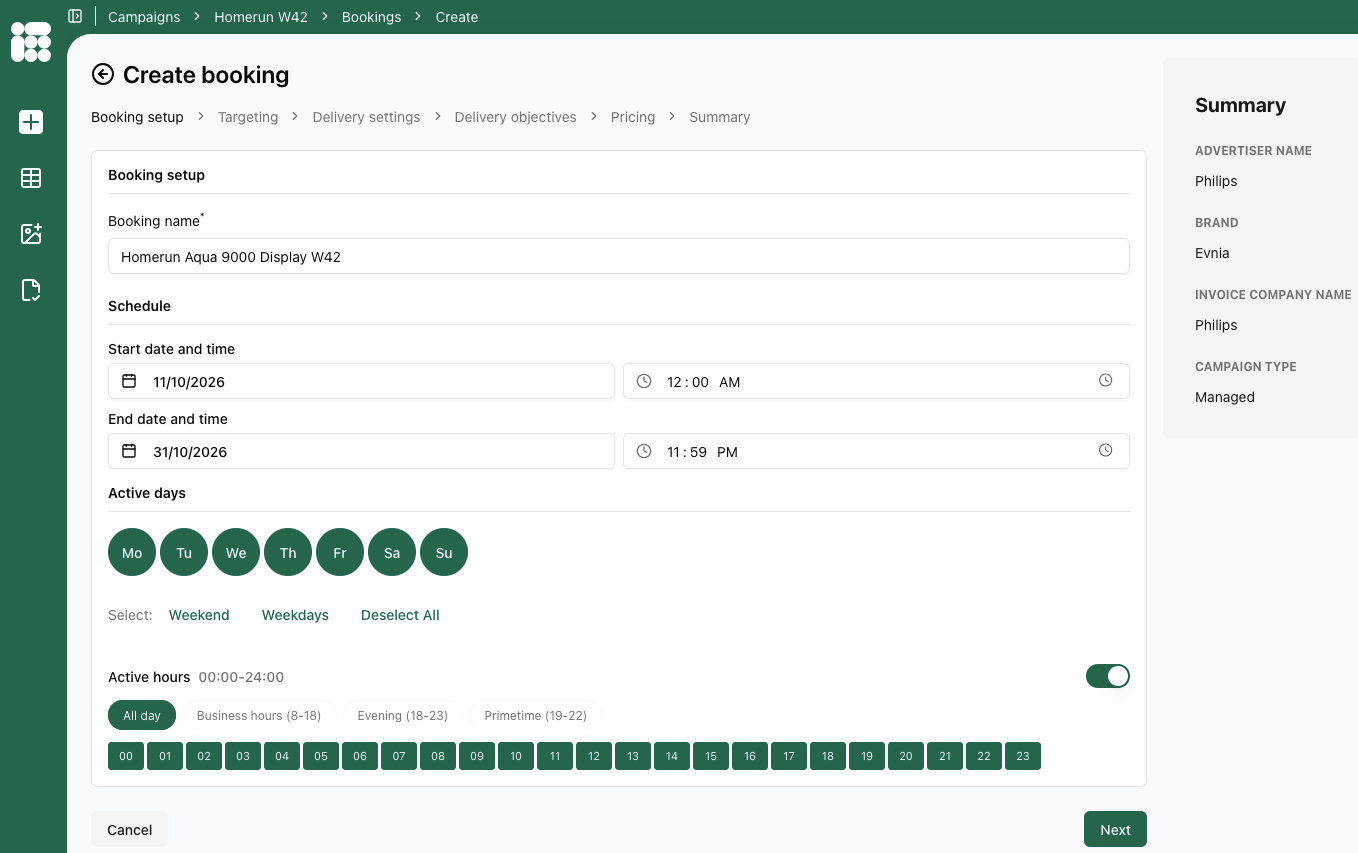
In this form, the following details need to be entered:
- Booking name
- Schedule: Start date and End date of the booking including starting hour and ending hour. By default the the date of today is chosen for the start date and the beginning and end of the day are chosen for the beginning and ending hours of the booking.
- Active days: Days the booking will be displayed, with quick selects available for the weekend and weekdays.
- Active hours: Togglable setting which shows the hours during which the booking will be active, with quick selects available for Business hours, Evening, and Primetime.
A bookings end date also determines priority. Bookings that will end earlier, but have the same priority setting as other bookings that will end later will receive a higher priority and a higher share. For more information see this page.
Once you're done filling in the details of this screen, you can click Next to proceed to the next form.
Targeting
In this form the Booking's placements and targets will be filled in.
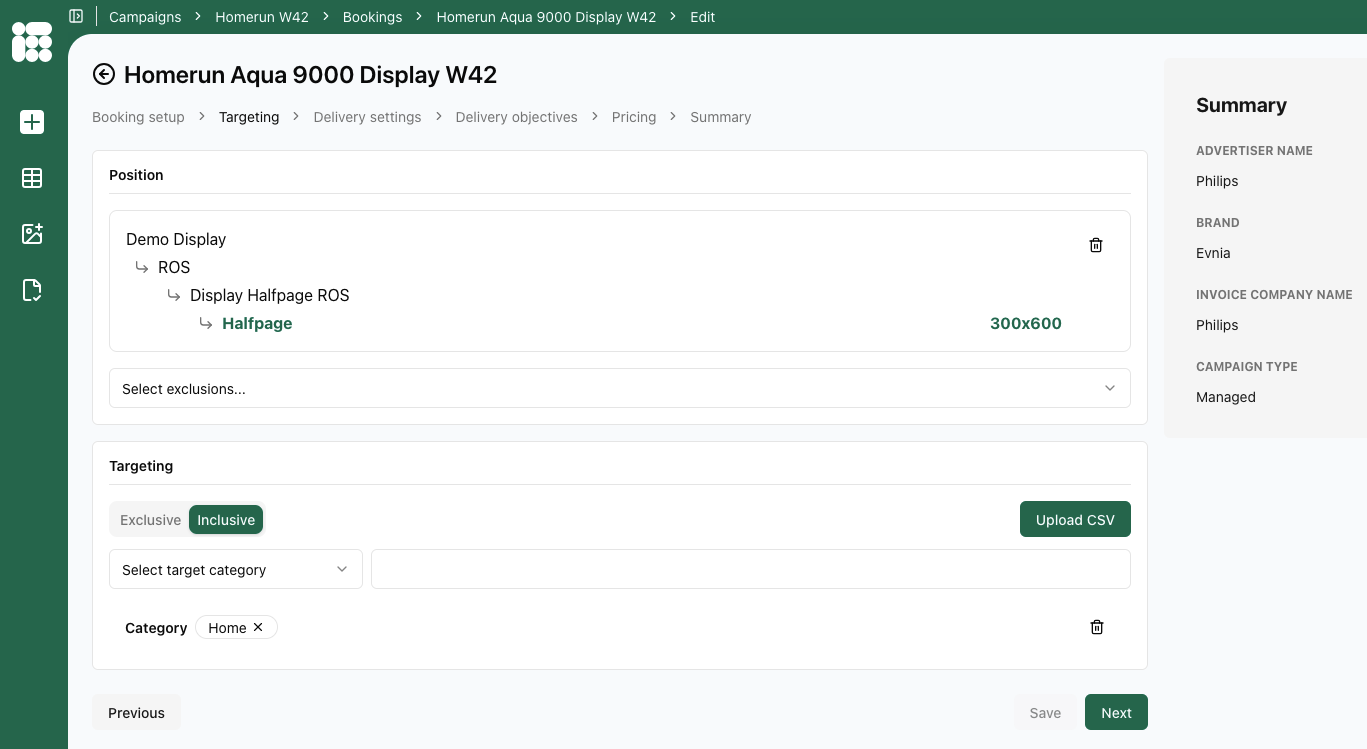
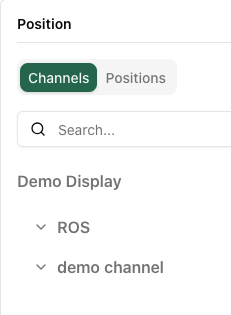
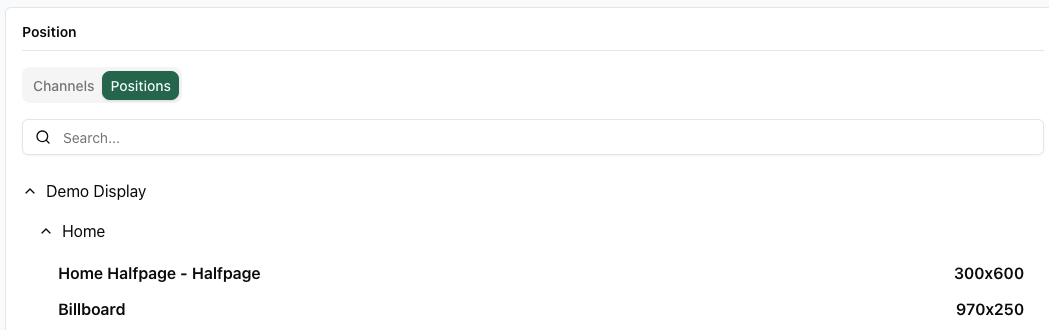
the following details need to be entered:
- Position: Either a channel or a single position. The Channel is organised by Location -> Position -> Format; the Position is organised by Publication -> Location -> Format
- Exclusions (when selecting a channel): Here you can exclude certain publications and positions from channels
- Targeting: You can select inclusive or exclusive targets. Inclusive targets will display the booking if the target is present in the request, while exclusive targets will display the booking if the selected target is not present in the request.
- Target category: category of targets you want to add. Targets within the same category work in an OR relationship (adding more targets widens the inventory), while an AND relationship exists between target categories (narrowing the inventory).
- Target value: Once you selected a target category, you can add target values. There is a search bar available to aid in finding the right targets.
Be cautious when combining positive and negative target values within the same target type. A positive target value in the same target type as a negative target value can cancel out the negative target. If the positive target is present, the booking will be delivered (since it's in an OR relation, only one target needs to be present), even if the target that needs to be excluded is present. You can solve this by making a combined target value. For more information, see the Targeting page.
Targets make a booking more specific and, therefore, count towards its priority, IF the inventory is not sufficient for all running bookings (overdelivery). A booking with targets active will take priority over a booking without in this case, provided the actual priority level is equal.
Once the position and targets are selected, we can proceed to the following form by clicking Next.
Delivery settings
In the delivery settings form, we'll decide how the booking will deliver.
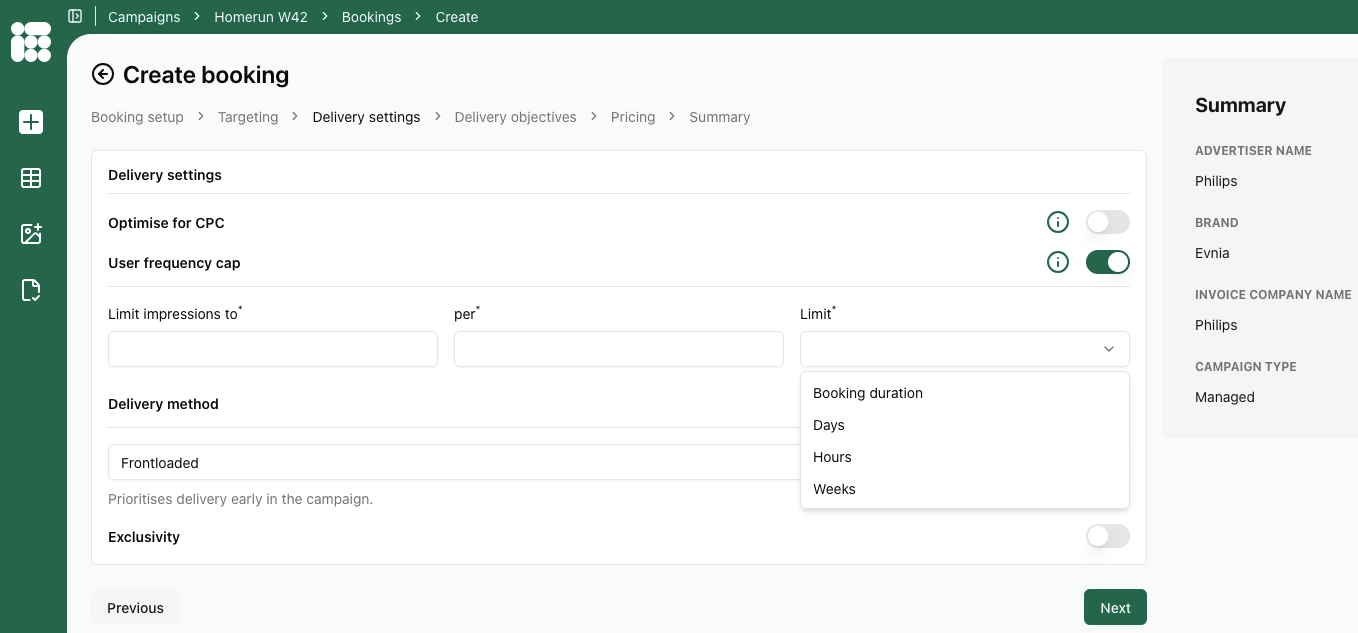

the following details need to be entered:
- Optimise for CPC: if multiple creatives are trafficked to this booking, and this feature is turned on, the weights of the creatives will shift in favor of the creative that achieves the highest click-through rate. This optimises the booking for higher click-through rates
- User frequency cap: Limits the number of times an individual user sees your ad within a set time period to prevent overexposure. Pick the amount of impressions to trigger the cap and then pick the amount of time to enforce the cap (10 impressions per 2 weeks means after 10 impressions have been delivered to the user, no impressions will be delivered to that user for the remainder of the 2 week period). Booking duration means the cap will last until the end date of the booking.
Please note that the unique identification of visitors and the storage of personal and other data are subject to national, European, and international laws and regulations. It is the exclusive responsibility of the publisher to comply with the law and adequately notify the user of their rights. Adhese can help and advise publishers here. More on user privacy is available in the GDPR section of the documentation.
Adhese won't deliver a campaign with a frequency cap to implementations without any consent integration or to visitors who do not accept cookies (see The user privacy settings of a browser).
- Delivery method:
- Share of Voice (SOV): The Share of Voice (SOV) delivery method gives a percentage or share (as defined by the delivery percentage) of the position's expected volume of impressions (voice). The delivery percentage indicates the frequency at which a booking will be delivered. A higher percentage means the booking will be delivered more frequently. For example, if the delivery percentage is 20%, the booking will be delivered once for every five impressions.
New targets, positions & forecasting: New targets and positions lack forecast data and are therefore best used in combination with the SOV setting. When used with the auto setting, the system will try to calculate an estimated share. However, with many competing bookings on that same target, only some will likely receive a share. The other bookings will only start delivering once the forecast data is available, which can take up to a week.
Delivery times may also be affected by other factors, such as traffic volume and competing bookings with higher priority, which can cause deviations from the desired schedule.
ASAP - If you want to set a goal (see How: To reach) and achieve it as quickly as possible, set the delivery percentage to 100%.
You cannot combine SOV with exclusivity settings.
-
- Rotation: The Rotation delivery method aims to start and stop bookings without changing the properties of competing bookings. Rotation ensures that competitive bookings with the same priority and delivery method have an equal chance of being delivered. For instance, if three bookings with the same priority are booked on the same position, whether in one campaign or separate campaigns, each booking will be displayed randomly for 33% of the time. Similarly, when ten bookings are booked, each one will be displayed for 10% of the time.
The Rotation delivery method is often used to fill unsold inventory, but it only works when all bookings are 100% identical. It is typically used for in-house (or stopper) campaigns and is displayed when no higher-priority campaigns have been booked.
- Rotation: The Rotation delivery method aims to start and stop bookings without changing the properties of competing bookings. Rotation ensures that competitive bookings with the same priority and delivery method have an equal chance of being delivered. For instance, if three bookings with the same priority are booked on the same position, whether in one campaign or separate campaigns, each booking will be displayed randomly for 33% of the time. Similarly, when ten bookings are booked, each one will be displayed for 10% of the time.
You cannot combine rotation with exclusivity settings.
We highly recommend using one creative per rotation booking. Using multiple creatives per booking with a rotation delivery schedule can result in the booking not being delivered in accordance with the share of each creative. For example, even if both creatives have a 50% share, it is possible that one creative will deliver significantly more impressions than the other.
-
- Even: Fifty per cent of the booked impressions will be delivered in the first half of the delivery period, with the remaining 50 per cent delivered in the second half. Select this option if you would prefer a consistent delivery rate throughout the entire booking period.
- Frontloaded: 62,5% of the booked impressions will be delivered in the first half of the delivery period, with the remaining 37,5% in the second half. Choose this option if you would prefer the majority of impressions to be delivered during the first half of the booking period.
- As fast as possible: 75% of the total number of booked impressions will be delivered in the first half of the delivery period, with the remaining 25% being delivered in the second half. Select this option if you want the majority of your impressions to be delivered in the first half of the booking period.
The difference between as-fast-as-possible and SOV 100% is that the former is still an automated delivery method that takes the delivery period and competing bookings into account, whereas SOV 100% does not (which can cause delivery problems for competing bookings).
- Exclusivity: Either Exclude on Advertiser, Campaign or Creative. Only available with Even, Frontloaded and As fast as possible
- Advertiser: the current booking must not be delivered with any other booking from the same advertiser.
- Campaign: the current booking must not be delivered with any other booking from the current campaign.
- Creative: a creative linked to that booking can only be delivered once to the web page. This is useful when multiple formats with the same dimensions are requested on a web page, and a creative should be displayed only once on that page. Other creatives in the same campaign or coupled with the same booking can still be delivered on the same webpage.
When all details of the form are filled in as desired, click Next to proceed.
Delivery objectives
In the delivery objectives form, you'll fill in the to reach objectives of your booking.
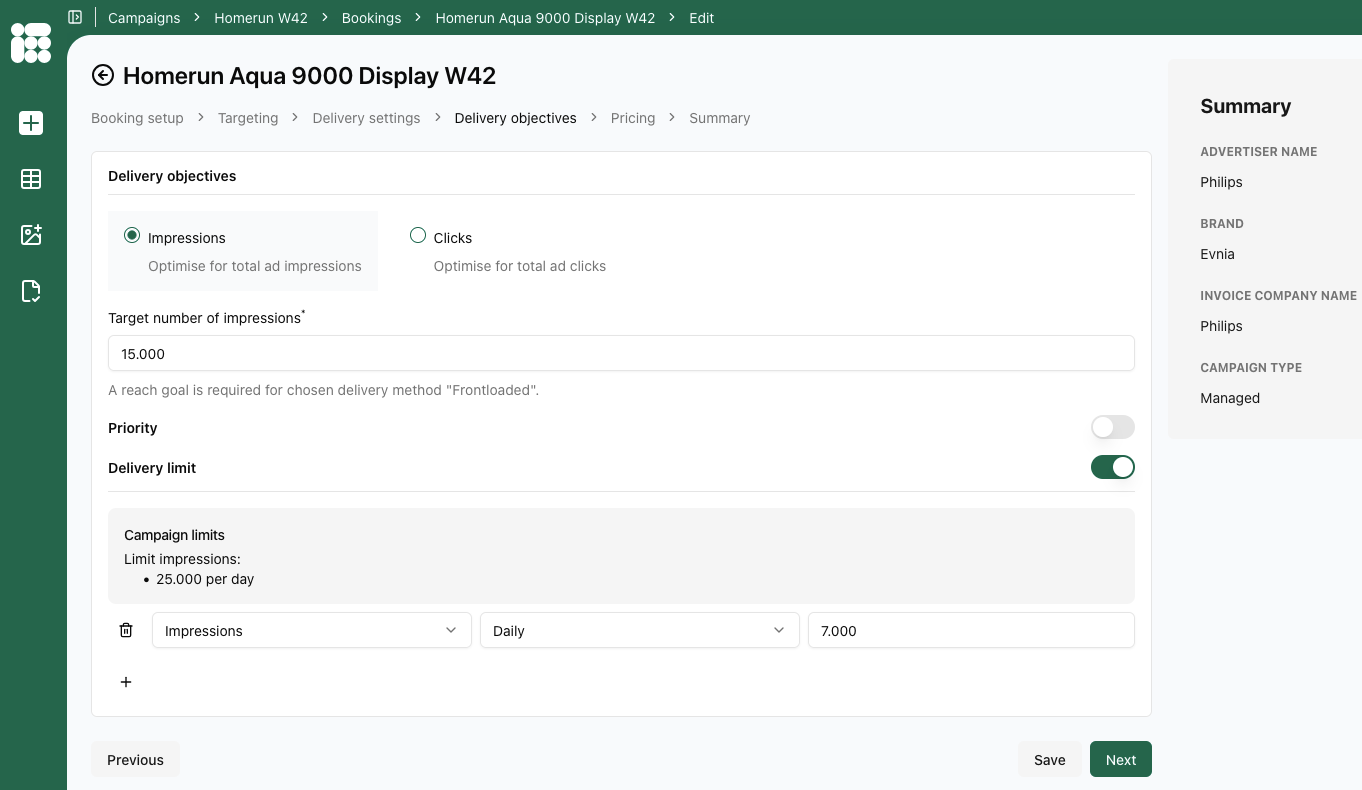
the following details can be entered:
- Impressions or Clicks
- Target number of impressions/clicks: Enter the to reach amount of the booking objective. Delivery of the booking will stop once the objective is reached. If no objective is filled in, the booking will continue until the campaign's objectives are reached. If no campaign objectives are set as well, the booking will continue delivery until the end date is reached
- Priority: This togglable setting allows you to set a priority on booking level. By default the booking inherits the campaign priority. If you set a priority on booking level, it overrides the campaign priority for this specific booking.
- Delivery limit: This togglable setting works just as the campaign delivery limit. It's a limit based on Impressions or Clicks, either Daily or Hourly expressed in the chosen amount. For the chosen time period, when the target is reached, the booking will stop delivery for the duration.
Important: Delivery Limits are applied from the moment they are configured and published. Any impressions already served before the limit was set, will not be counted toward the total. If you add a delivery limit later in the day to an already-running booking, the impressions delivered earlier that day are excluded from the count.
Additionally, delivery limits are based on tracked impressions rather than requested ads. If there is a significant delay between an ad request and the moment the impression is registered, the booking will continue delivering during that window, which may result in overdelivery.
When all details of the form are filled in as needed, click Next to proceed to Pricing.
Pricing
Here we select the pricing model for our booking.
 the following details can be entered:
- Pricing model: this option is togglable, the pricing model is entirely optional.
- Pricing type: Depending on the setup of your account, the following options are available:
- CPM or cost per mille, the cost per thousand impressions for an ad.
- CPC or cost per click, the cost for a single click on an ad.
- CPP or cost per period is the cost for a fixed delivery period, independent of the number of impressions or clicks.
- ADM or administrative cost, a cost that is unrelated to a volume or time.
- Pricing type: Depending on the setup of your account, the following options are available:
Once the pricing details are filled in as required, you can click Next to head to the summary.
Summary
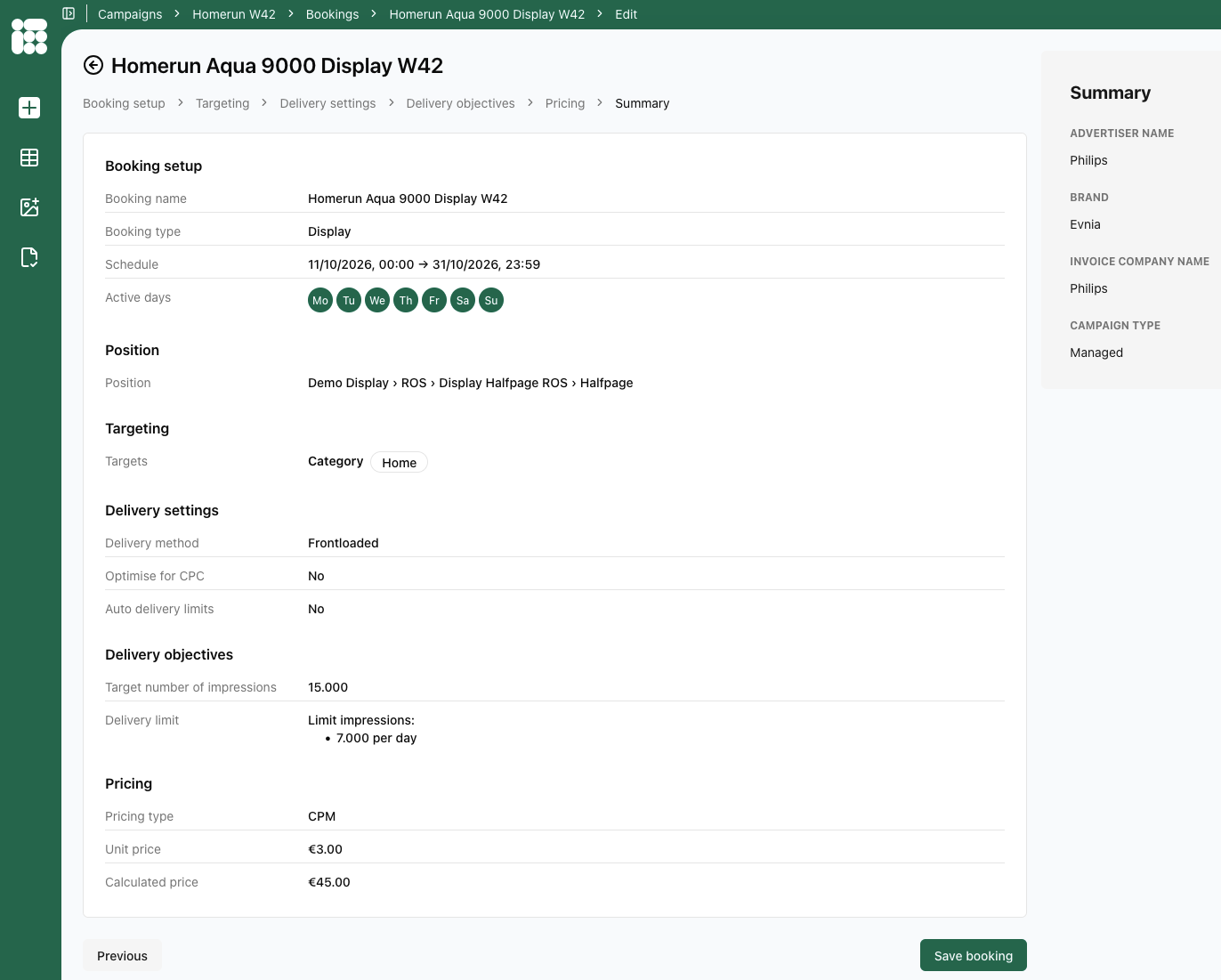
On the final screen of the display booking creation process, we get a summary of all the booking details we filled in. After checking if the details are filled in correctly, you click on Save booking to complete the process.
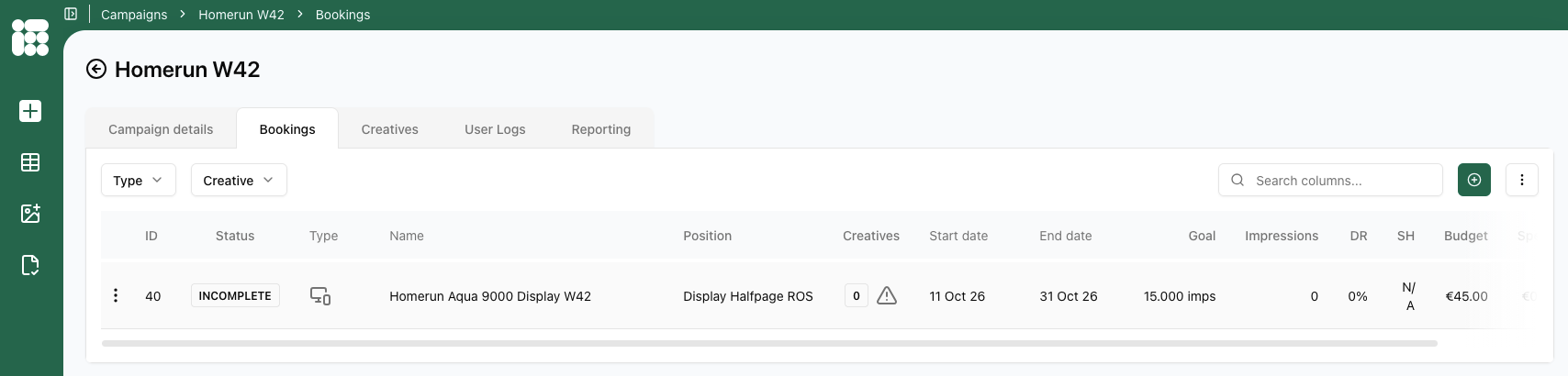
After saving you'll land on the booking overview.
In-Store Booking
Please consult the following page for more information to create a new booking.
Booking setup
Once you clicked on the In-Store (DOOH) booking type, a series of forms to enter the booking details will be presented. The first form is the Booking setup:
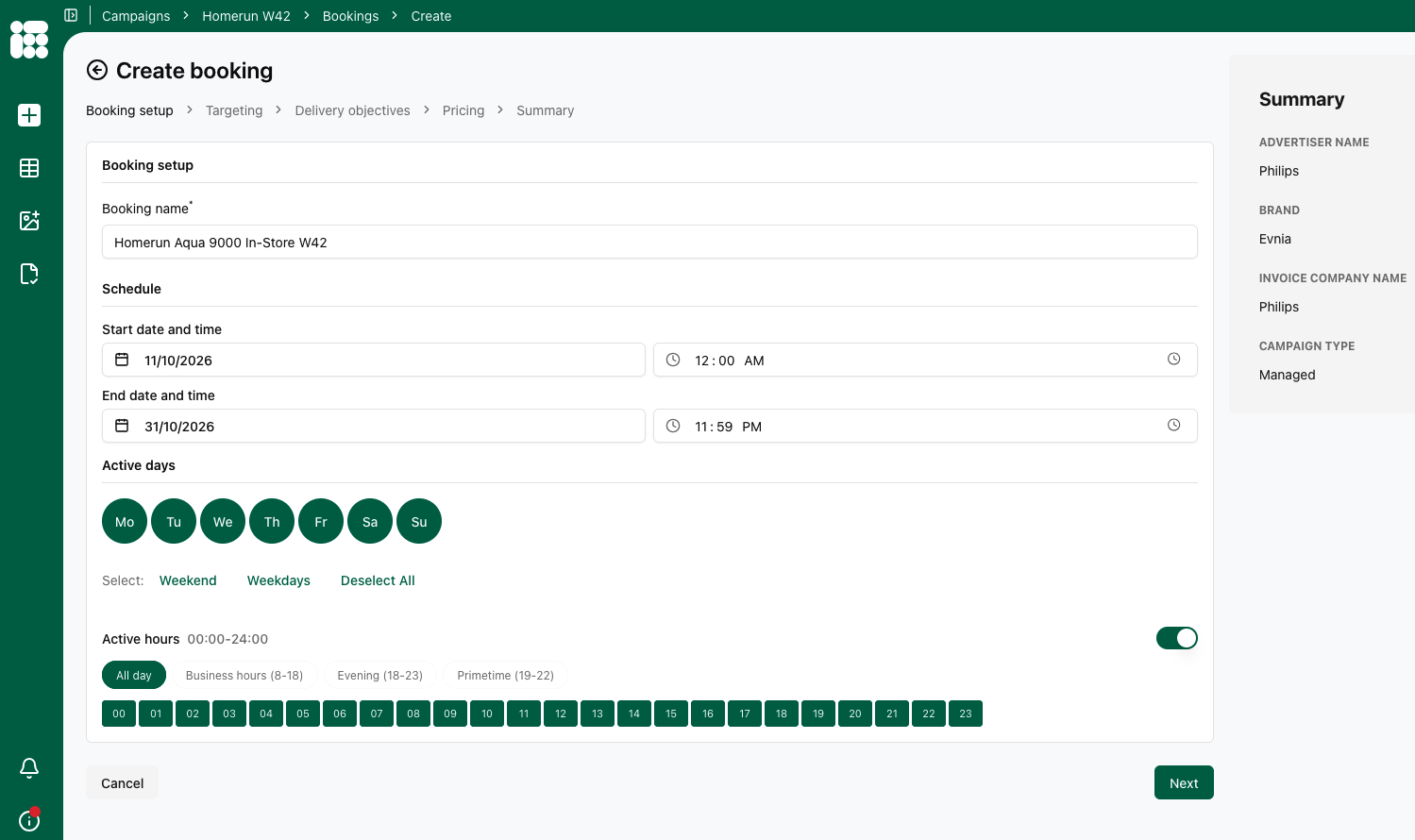
In this form, the following details need to be entered:
- Booking name
- Schedule: Start date and End date of the booking including starting hour and ending hour. By default the the date of today is chosen for the start date and the beginning and end of the day are chosen for the beginning and ending hours of the booking.
- Active days: Days the booking will be displayed, with quick selects available for the weekend and weekdays.
- Active hours: Togglable setting which shows the hours during which the booking will be active, with quick selects available for Business hours, Evening, and Primetime.
A bookings end date also determines priority. Bookings that will end earlier, but have the same priority setting as other bookings that will end later will receive a higher priority and a higher share. For more information see this page.
Once you're done filling in the details of this screen, you can click Next to proceed to the next form.
Targeting
In this form the Booking's placements and targets will be filled in.
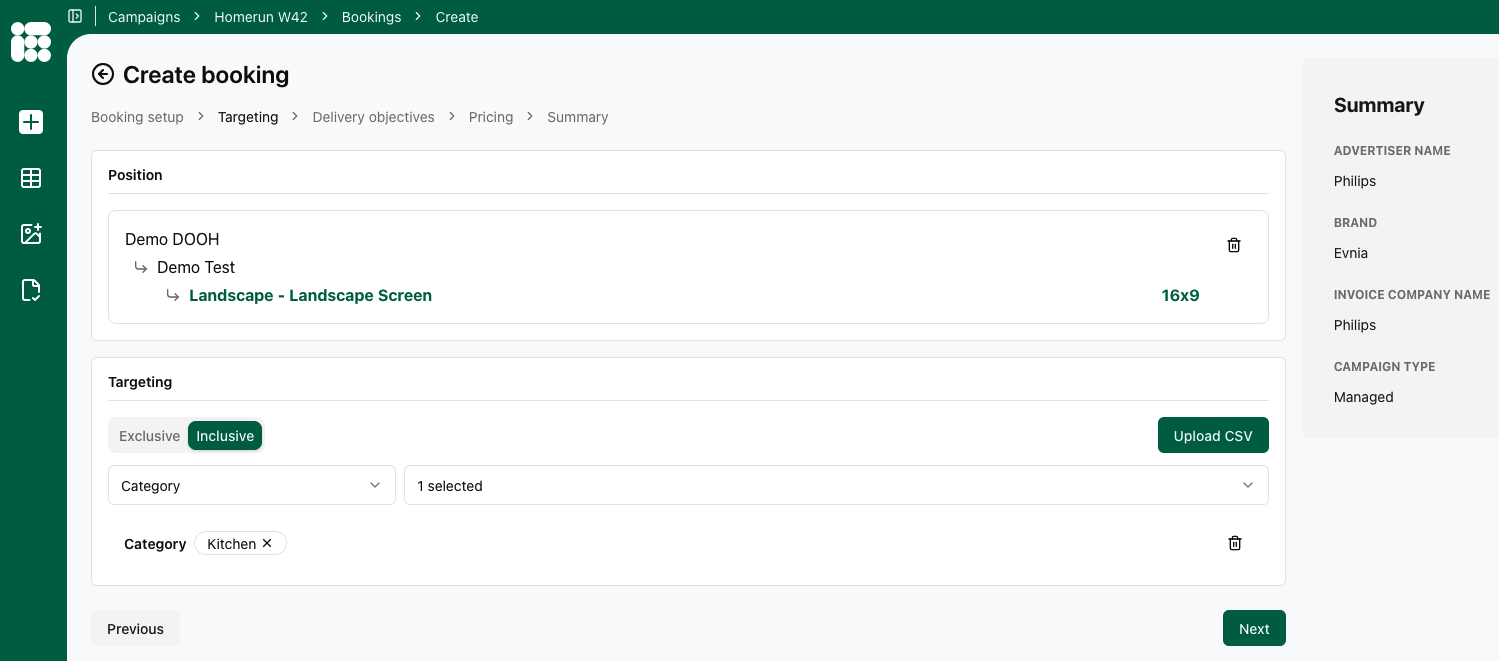
the following details need to be entered:
- Position: Either a channel or a single position. The Channel is organised by Location -> Position -> Format; the Position is organised by Publication -> Location -> Format
- Exclusions: Here you can exclude certain publications and positions from channels
- Targeting: You can select inclusive or exclusive targets. Inclusive targets will display the booking if the target is present in the request, while exclusive targets will display the booking if the selected target is not present in the request.
- Target category: category of targets you want to add. Targets within the same category work in an OR relationship (adding more targets widens the inventory), while an AND relationship exists between target categories (narrowing the inventory).
- Target value: Once you selected a target category, you can add target values. There is a search bar available to aid in finding the right targets.
Be cautious when combining positive and negative target values within the same target type. A positive target value in the same target type as a negative target value can cancel out the negative target. If the positive target is present, the booking will be delivered (since it's in an OR relation, only one target needs to be present), even if the target that needs to be excluded is present. You can solve this by making a combined target value. For more information, see the Targeting page.
Targets make a booking more specific and, therefore, count towards its priority, IF the inventory is not sufficient for all running bookings (overdelivery). A booking with targets active will take priority over a booking without in this case, provided the actual priority level is equal.
Once the position and targets are selected, we can proceed to the following form by clicking Next.
Delivery objectives
In the delivery objectives form, you'll fill in the to reach objectives of your booking.
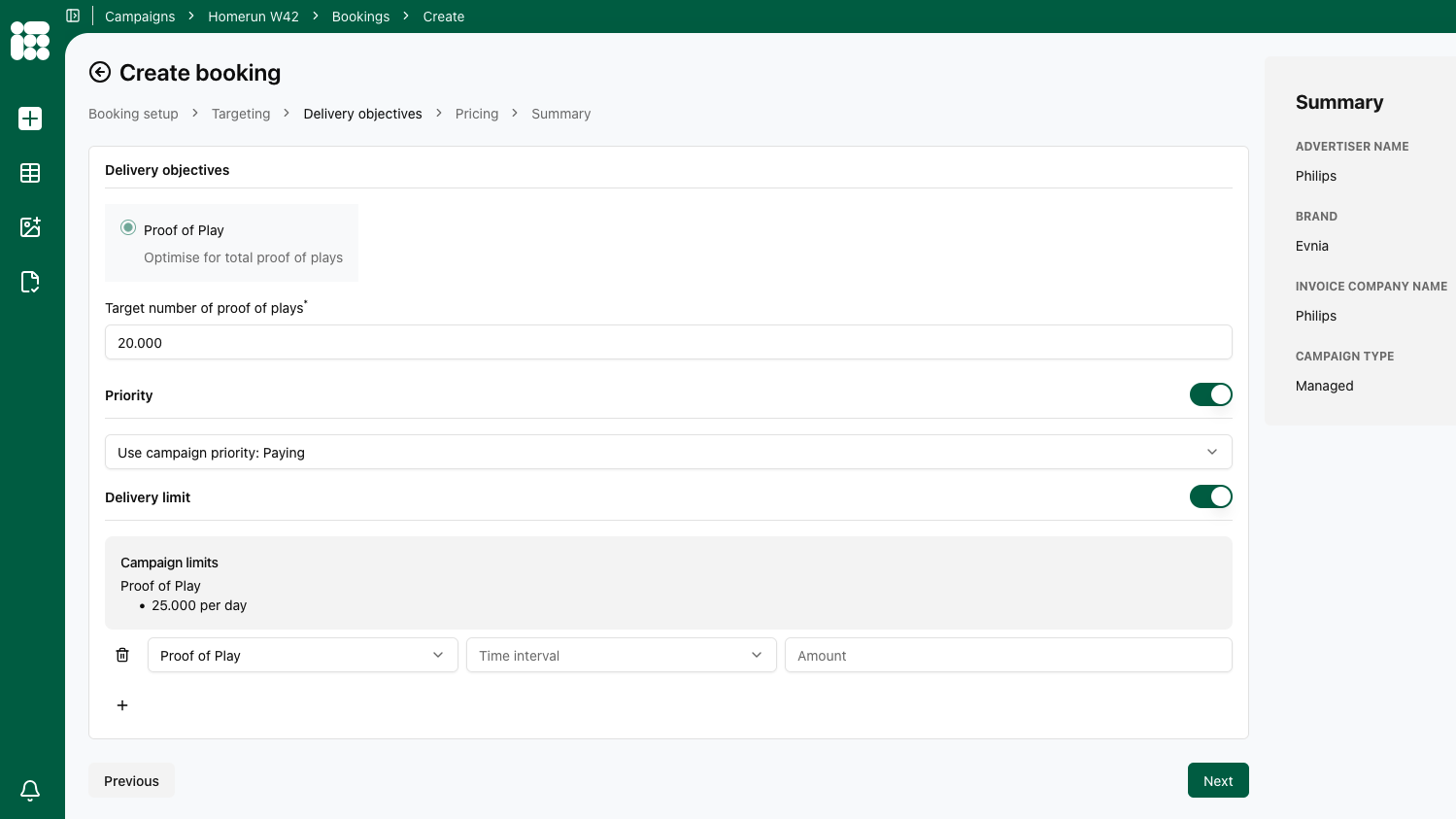
the following details can be entered:
- Target number proof of plays:
- Target number of proof of plays: Enter the to reach amount of the booking objective. Delivery of the booking will stop once the objective is reached.
- Priority: This togglable setting allows you to set a priority on booking level. By default the booking inherits the campaign priority. If you set a priority on booking level, it overrides the campaign priority for this specific booking.
- Delivery limit: This togglable setting works just as the campaign delivery limit. Here it's a limit solely based on proof of plays, either Daily or Hourly expressed in the chosen amount. For the chosen time period, when the target is reached, the bookings will stop delivery for the duration.
When all details of the form are filled in as needed, click Next to proceed to Pricing.
Pricing
Here we select the pricing model for our booking.
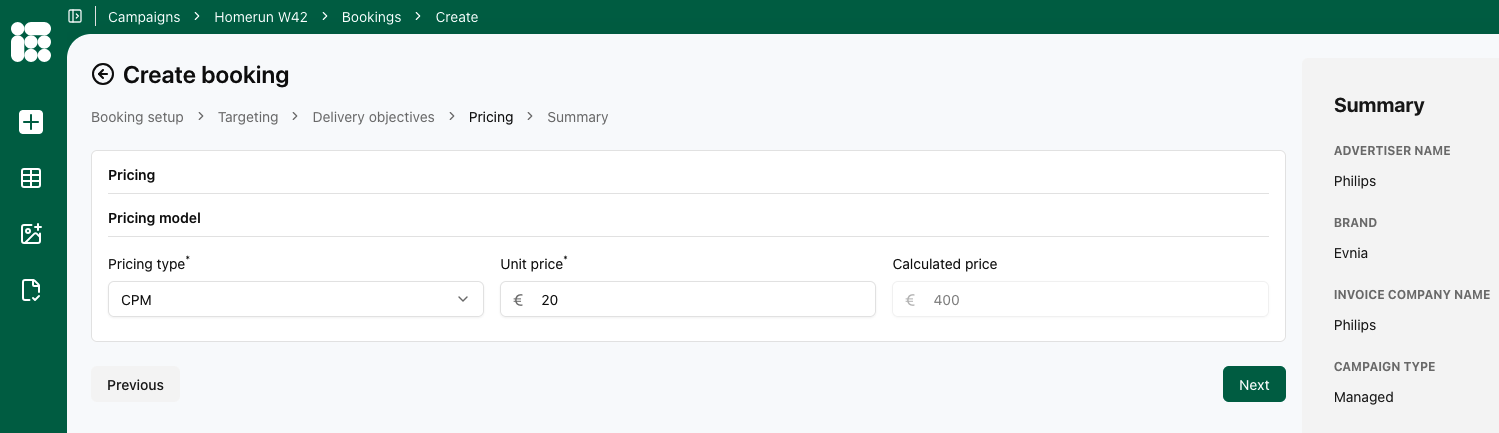
Here we select the pricing model for our booking.
- Pricing model: this option is togglable, the pricing model is entirely optional.
- Pricing type: Depending on the setup of your account, the following options are available:
- CPM or cost per mille, the cost per thousand impressions for an ad.
- CPP or cost per period is the cost for a fixed delivery period, independent of the number of impressions or clicks.
- ADM or administrative cost, a cost that is unrelated to a volume or time.
- Pricing type: Depending on the setup of your account, the following options are available:
Once the pricing details are filled in as required, you can click Next to head to the summary.
Summary
On the final screen of the in-store booking creation process, we get a summary of all the booking details we filled in. After checking if the details are filled in correctly, you click on Save booking to complete the process.
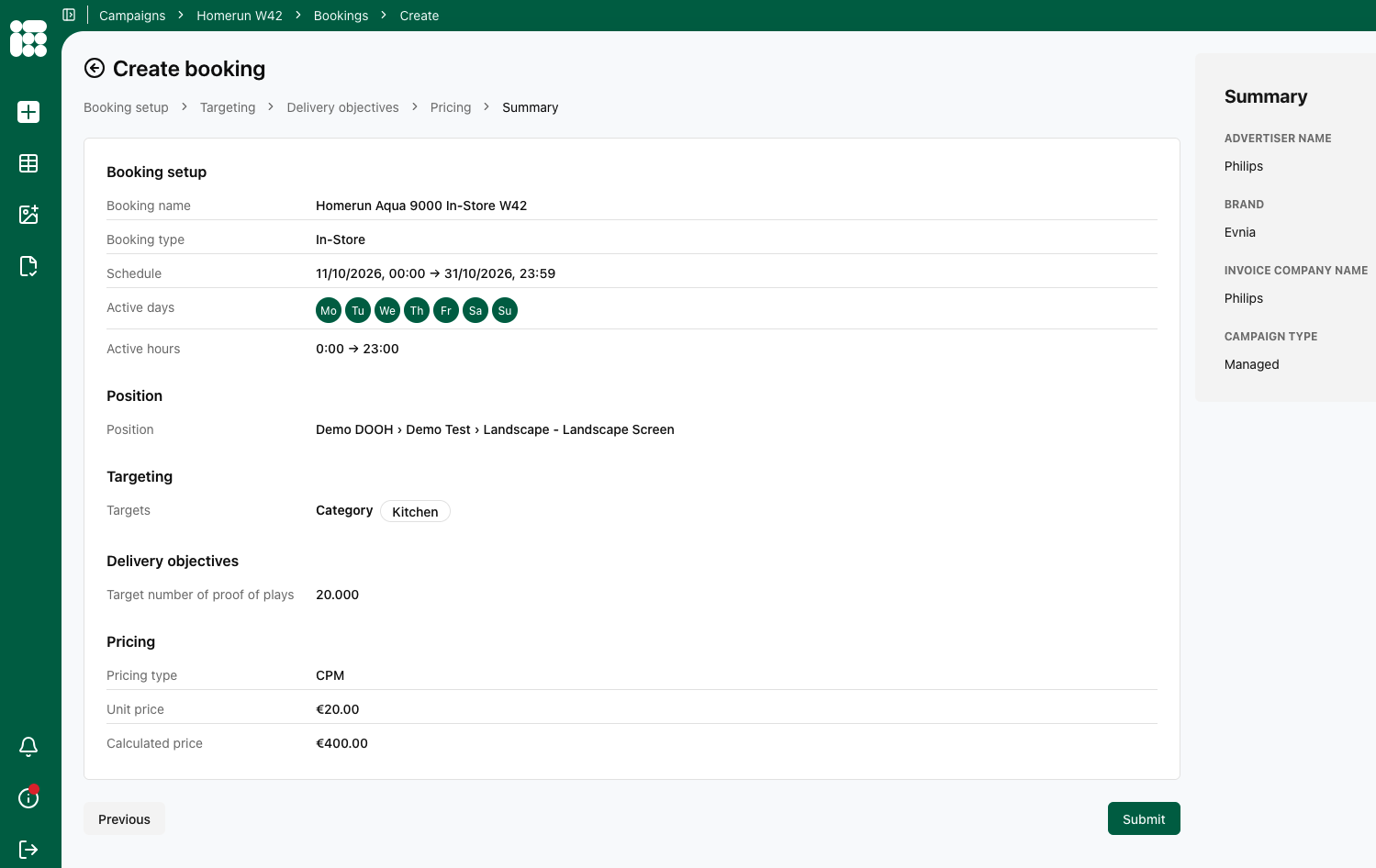
After saving you'll land on the booking overview.
Sponsored Product Booking
Please consult the following page for more information to create a new booking.
Booking setup
Once you clicked on the Sponsored Product booking type, a series of forms to enter the booking details will be presented. The first form is the Booking setup:
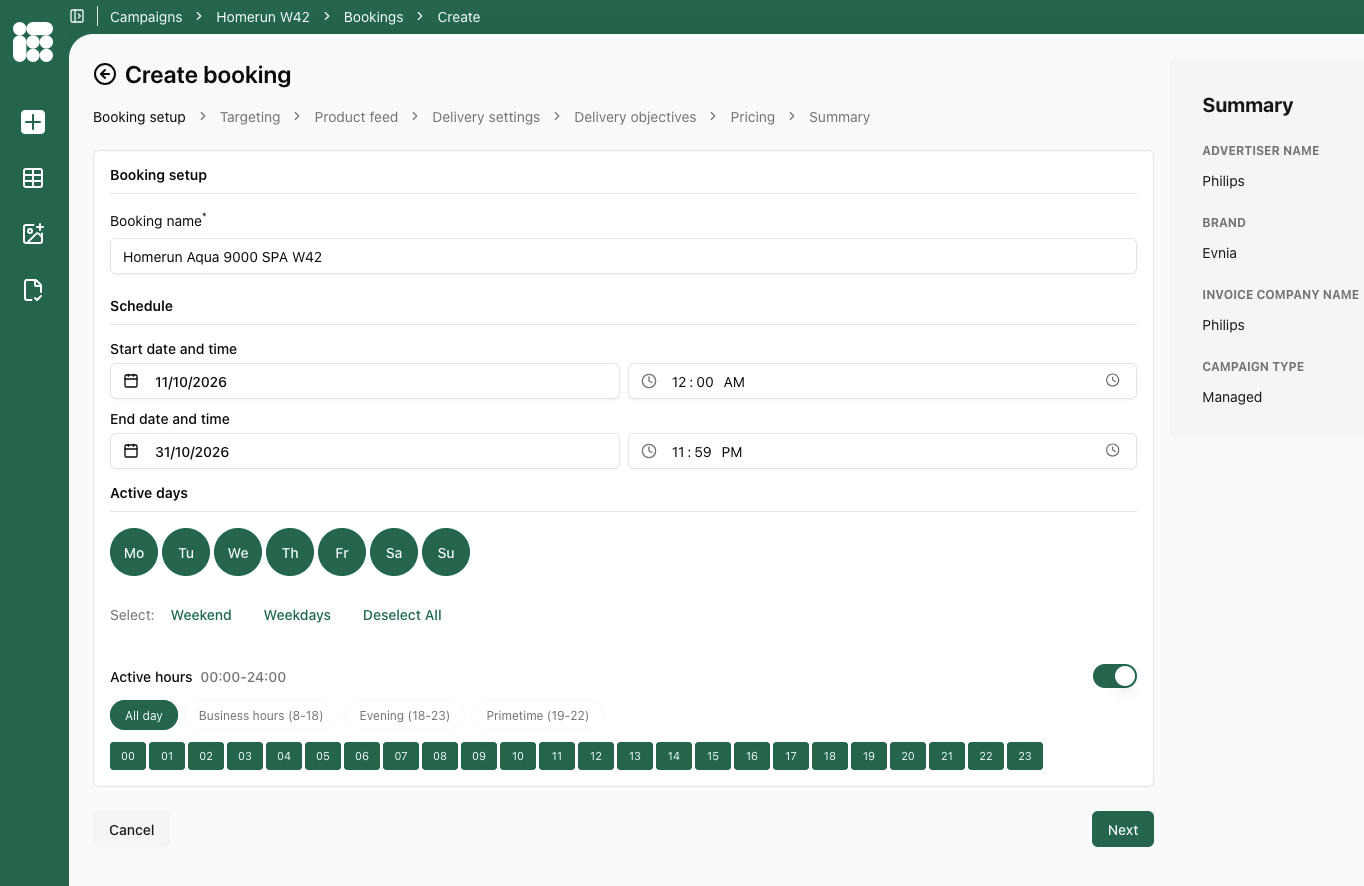
In this form, the following details need to be entered:
- Booking name
- Schedule: Start date and End date of the booking including starting hour and ending hour. By default the the date of today is chosen for the start date and the beginning and end of the day are chosen for the beginning and ending hours of the booking.
- Active days: Days the booking will be displayed, with quick selects available for the weekend and weekdays.
- Active hours: Togglable setting which shows the hours during which the booking will be active, with quick selects available for Business hours, Evening, and Primetime.
A bookings end date also determines priority. Bookings that will end earlier, but have the same priority setting as other bookings that will end later will receive a higher priority and a higher share. For more information see this page.
Once you're done filling in the details of this screen, you can click Next to proceed to the next form.
Targeting
In this form the Booking's placements and targets will be filled in.
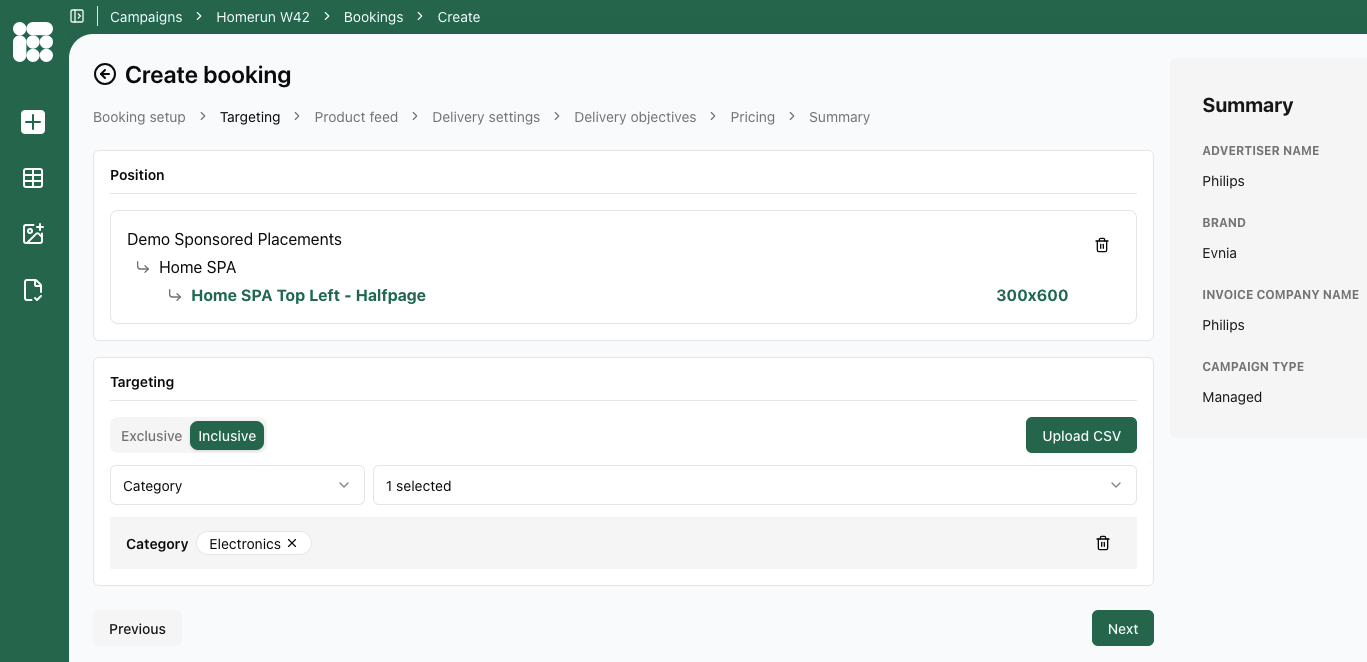
the following details need to be entered:
- Position: Either a channel or a single position. The Channel is organised by Location -> Position -> Format; the Position is organised by Publication -> Location -> Format
- Exclusions (when selecting a channel): Here you can exclude certain publications and positions from channels
- Targeting: You can select inclusive or exclusive targets. Inclusive targets will display the booking if the target is present in the request, while exclusive targets will display the booking if the selected target is not present in the request.
- Target category: category of targets you want to add. Targets within the same category work in an OR relationship (adding more targets widens the inventory), while an AND relationship exists between target categories (narrowing the inventory).
- Target value: Once you selected a target category, you can add target values. There is a search bar available to aid in finding the right targets.
Be cautious when combining positive and negative target values within the same target type. A positive target value in the same target type as a negative target value can cancel out the negative target. If the positive target is present, the booking will be delivered (since it's in an OR relation, only one target needs to be present), even if the target that needs to be excluded is present. You can solve this by making a combined target value. For more information, see the Targeting page.
Targets make a booking more specific and, therefore, count towards its priority, IF the inventory is not sufficient for all running bookings (overdelivery). A booking with targets active will take priority over a booking without in this case, provided the actual priority level is equal.
Once the position and targets are selected, we can proceed to the following form by clicking Next.
Product feed
In the Product feed form, we select the products we want to feature as sponsored products.
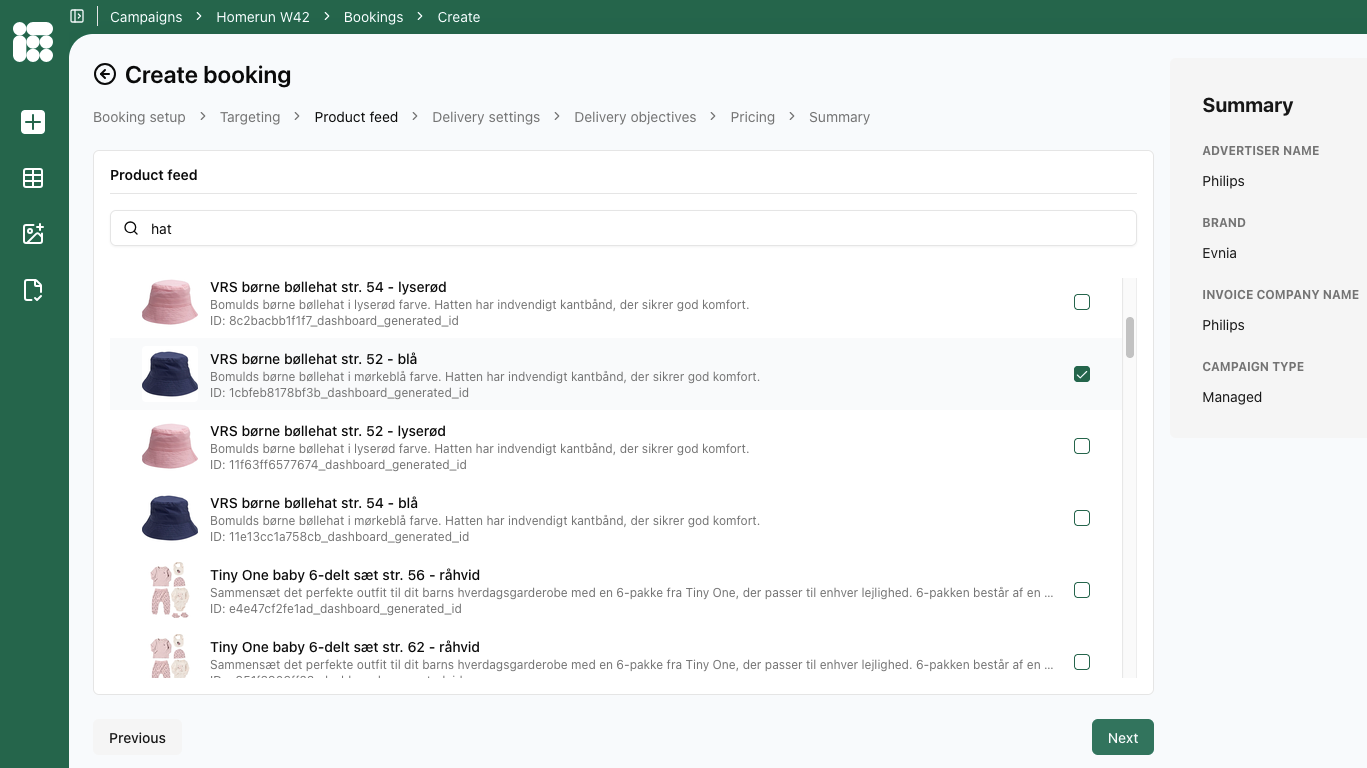
You can select one or multiple items to attach to the booking. Creatives will be created per product you've selected.
Delivery settings
In the delivery settings form, we'll decide how the booking will deliver.
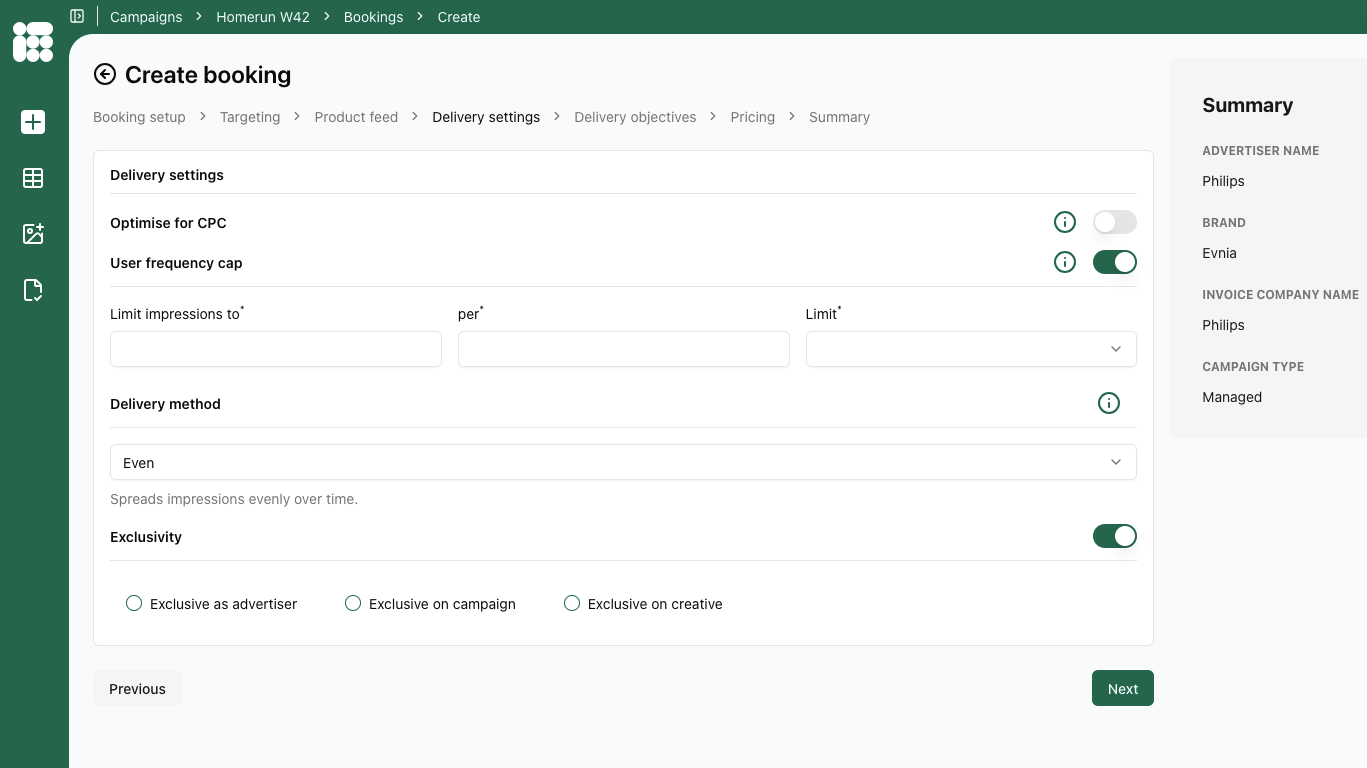
the following details need to be entered:
- Optimise for CPC: if multiple creatives are trafficked to this booking, and this feature is turned on, the weights of the creatives will shift in favor of the creative that achieves the highest click-through rate. This optimises the booking for higher click-through rates
- User frequency cap: Limits the number of times an individual user sees your ad within a set time period to prevent overexposure. Pick the amount of impressions to trigger the cap and then pick the amount of time to enforce the cap (10 impressions per 2 weeks means after 10 impressions have been delivered to the user, no impressions will be delivered to that user for the remainder of the 2 week period). Booking duration means the cap will last until the end date of the booking.
Please note that the unique identification of visitors and the storage of personal and other data are subject to national, European, and international laws and regulations. It is the exclusive responsibility of the publisher to comply with the law and adequately notify the user of their rights. Adhese can help and advise publishers here. More on user privacy is available in the GDPR section of the documentation.
Adhese won't deliver a campaign with a frequency cap to implementations without any consent integration or to visitors who do not accept cookies (see The user privacy settings of a browser).
- Delivery method:
- Share of Voice (SOV): The Share of Voice (SOV) delivery method gives a percentage or share (as defined by the delivery percentage) of the position's expected volume of impressions (voice). The delivery percentage indicates the frequency at which a booking will be delivered. A higher percentage means the booking will be delivered more frequently. For example, if the delivery percentage is 20%, the booking will be delivered once for every five impressions.
New targets, positions & forecasting: New targets and positions lack forecast data and are therefore best used in combination with the SOV setting. When used with the auto setting, the system will try to calculate an estimated share. However, with many competing bookings on that same target, only some will likely receive a share. The other bookings will only start delivering once the forecast data is available, which can take up to a week.
Delivery times may also be affected by other factors, such as traffic volume and competing bookings with higher priority, which can cause deviations from the desired schedule.
ASAP - If you want to set a goal (see How: To reach) and achieve it as quickly as possible, set the delivery percentage to 100%.
You cannot combine SOV with exclusivity settings.
-
- Rotation: The Rotation delivery method aims to start and stop bookings without changing the properties of competing bookings. Rotation ensures that competitive bookings with the same priority and delivery method have an equal chance of being delivered. For instance, if three bookings with the same priority are booked on the same position, whether in one campaign or separate campaigns, each booking will be displayed randomly for 33% of the time. Similarly, when ten bookings are booked, each one will be displayed for 10% of the time.
The Rotation delivery method is often used to fill unsold inventory, but it only works when all bookings are 100% identical. It is typically used for in-house (or stopper) campaigns and is displayed when no higher-priority campaigns have been booked.
- Rotation: The Rotation delivery method aims to start and stop bookings without changing the properties of competing bookings. Rotation ensures that competitive bookings with the same priority and delivery method have an equal chance of being delivered. For instance, if three bookings with the same priority are booked on the same position, whether in one campaign or separate campaigns, each booking will be displayed randomly for 33% of the time. Similarly, when ten bookings are booked, each one will be displayed for 10% of the time.
You cannot combine rotation with exclusivity settings.
We highly recommend using one creative per rotation booking. Using multiple creatives per booking with a rotation delivery schedule can result in the booking not being delivered in accordance with the share of each creative. For example, even if both creatives have a 50% share, it is possible that one creative will deliver significantly more impressions than the other.
-
- Even: Fifty per cent of the booked impressions will be delivered in the first half of the delivery period, with the remaining 50 per cent delivered in the second half. Select this option if you would prefer a consistent delivery rate throughout the entire booking period.
- Frontloaded: 62,5% of the booked impressions will be delivered in the first half of the delivery period, with the remaining 37,5% in the second half. Choose this option if you would prefer the majority of impressions to be delivered during the first half of the booking period.
- As fast as possible: 75% of the total number of booked impressions will be delivered in the first half of the delivery period, with the remaining 25% being delivered in the second half. Select this option if you want the majority of your impressions to be delivered in the first half of the booking period.
The difference between as-fast-as-possible and SOV 100% is that the former is still an automated delivery method that takes the delivery period and competing bookings into account, whereas SOV 100% does not (which can cause delivery problems for competing bookings).
- Exclusivity: Either Exclude on Advertiser, Campaign or Creative. Only available with Even, Frontloaded and As fast as possible
- Advertiser: the current booking must not be delivered with any other booking from the same advertiser.
- Campaign: the current booking must not be delivered with any other booking from the current campaign.
- Creative: a creative linked to that booking can only be delivered once to the web page. This is useful when multiple formats with the same dimensions are requested on a web page, and a creative should be displayed only once on that page. Other creatives in the same campaign or coupled with the same booking can still be delivered on the same webpage.
When all details of the form are filled in as desired, click Next to proceed.
Delivery objectives
In the delivery objectives form, you'll fill in the to reach objectives of your booking.
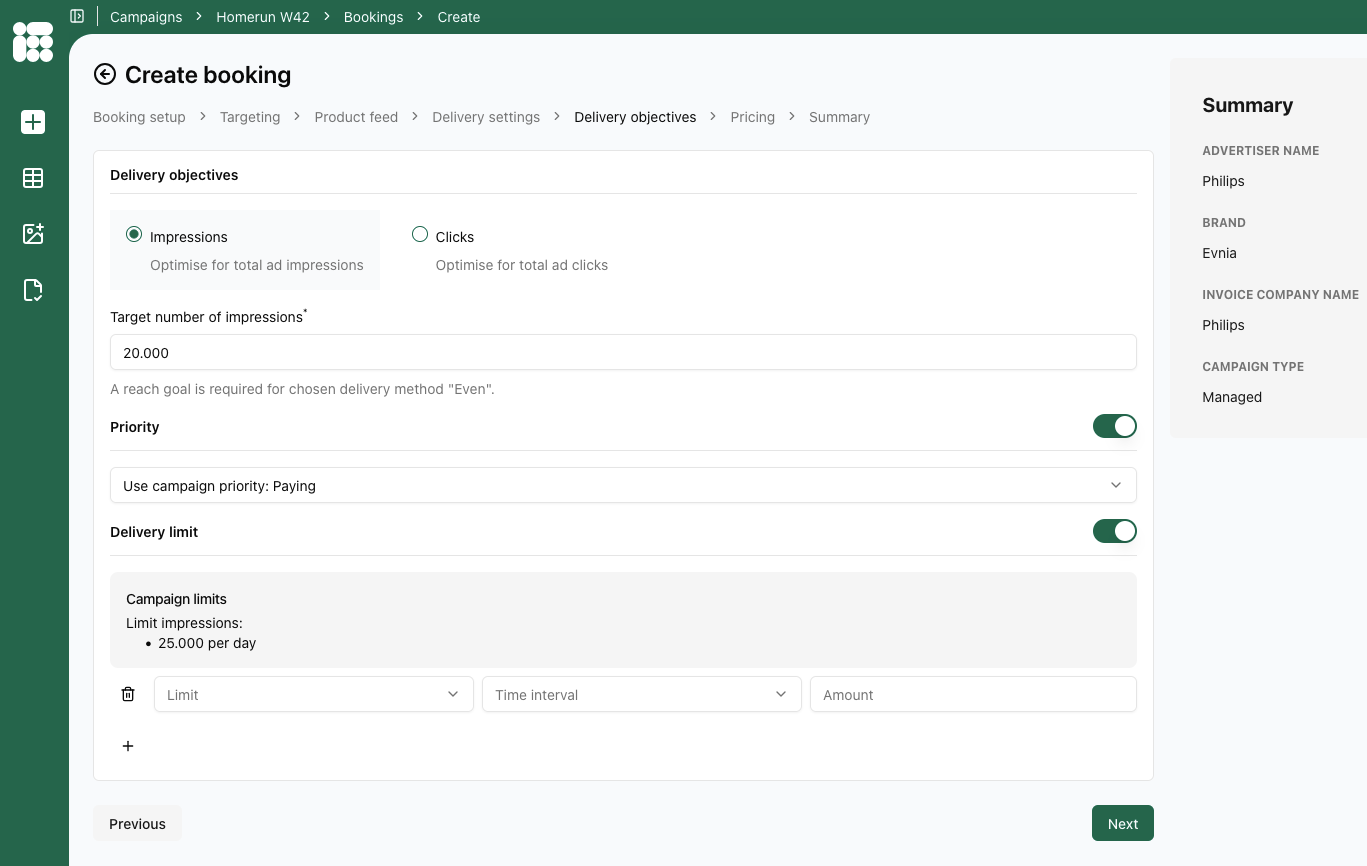
the following details can be entered:
- Impressions or Clicks
- Target number of impressions/clicks: Enter the to reach amount of the booking objective. Delivery of the booking will stop once the objective is reached. If no objective is filled in, the booking will continue until the campaign's objectives are reached. If no campaign objectives are set as well, the booking will continue delivery until the end date is reached
- Priority: This togglable setting allows you to set a priority on booking level. By default the booking inherits the campaign priority. If you set a priority on booking level, it overrides the campaign priority for this specific booking.
- Delivery limit: This togglable setting works just as the campaign delivery limit. It's a limit based on Impressions or Clicks, either Daily or Hourly expressed in the chosen amount. For the chosen time period, when the target is reached, the booking will stop delivery for the duration.
Important: Delivery Limits are applied from the moment they are configured and published. Any impressions already served before the limit was set, will not be counted toward the total. If you add a delivery limit later in the day to an already-running booking, the impressions delivered earlier that day are excluded from the count.
Additionally, delivery limits are based on tracked impressions rather than requested ads. If there is a significant delay between an ad request and the moment the impression is registered, the booking will continue delivering during that window, which may result in overdelivery.
When all details of the form are filled in as needed, click Next to proceed to Pricing.
Pricing
Here we select the pricing model for our booking.
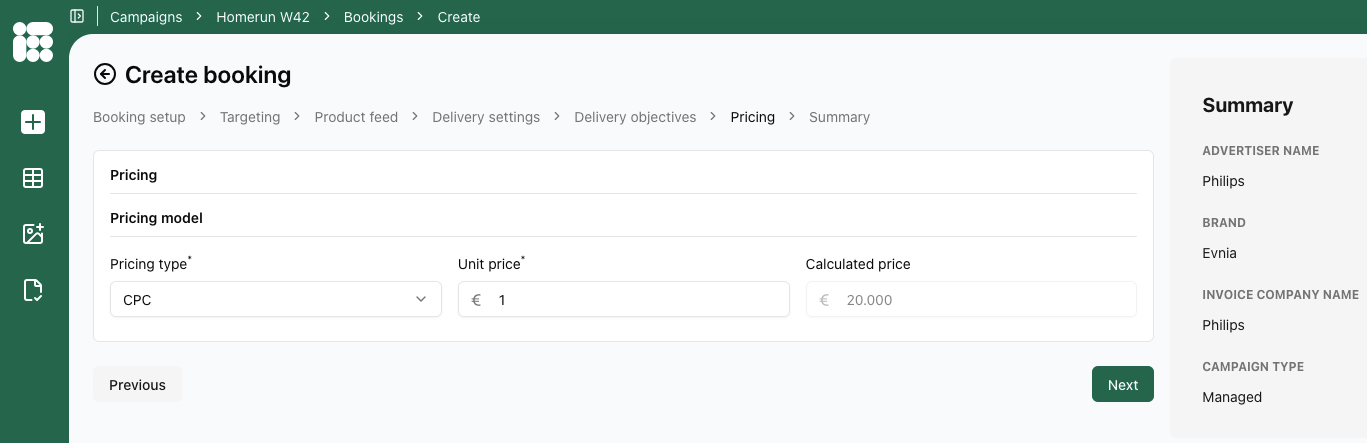
the following details can be entered:
- Pricing type: Depending on the setup of your account, the following options are available:
- CPM or cost per mille, the cost per thousand impressions for an ad.
- CPC or cost per click, the cost for a single click on an ad.
- CPP or cost per period is the cost for a fixed delivery period, independent of the number of impressions or clicks.
- ADM or administrative cost, a cost that is unrelated to a volume or time.
Once the pricing details are filled in as required, you can click Next to head to the summary.
Summary
On the final screen of the sponsored product booking creation process, we get a summary of all the booking details we filled in. After checking if the details are filled in correctly, you click on Save booking to complete the process.
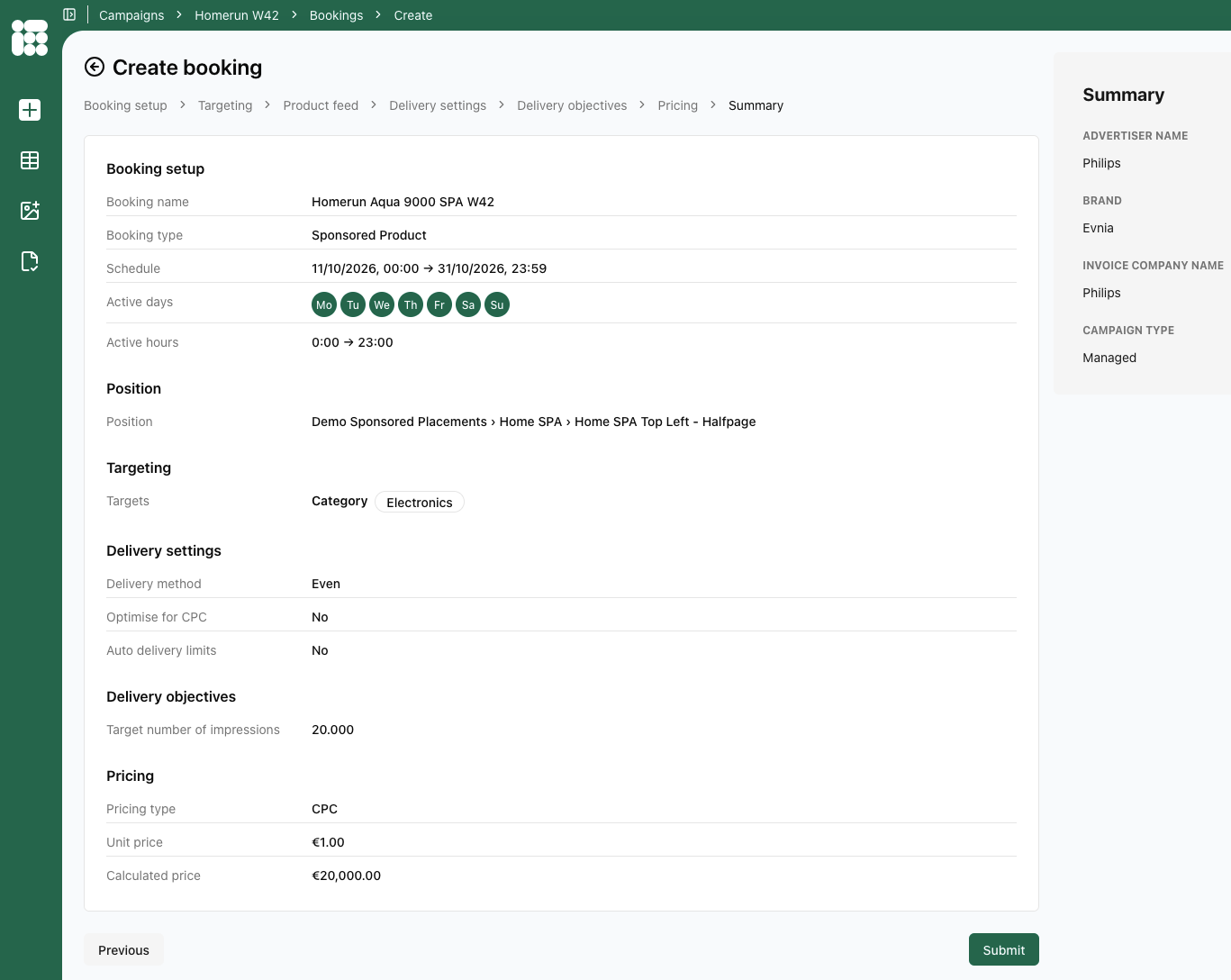
After saving you'll land on the booking overview.